This article provides an overview of Google plug-ins and how they can be used to extend functionality across websites and tools. It explains what Google plug-ins are, common examples (such as analytics, maps, tracking, and integrations), and when they should be used. The guide also highlights basic setup considerations, permissions, and best practices to ensure plug-ins are configured correctly and do not impact performance or user experience.
How to Navigate to Plug-In's
Step 1: Log into DealerStudio and Navigate to 'Websites'
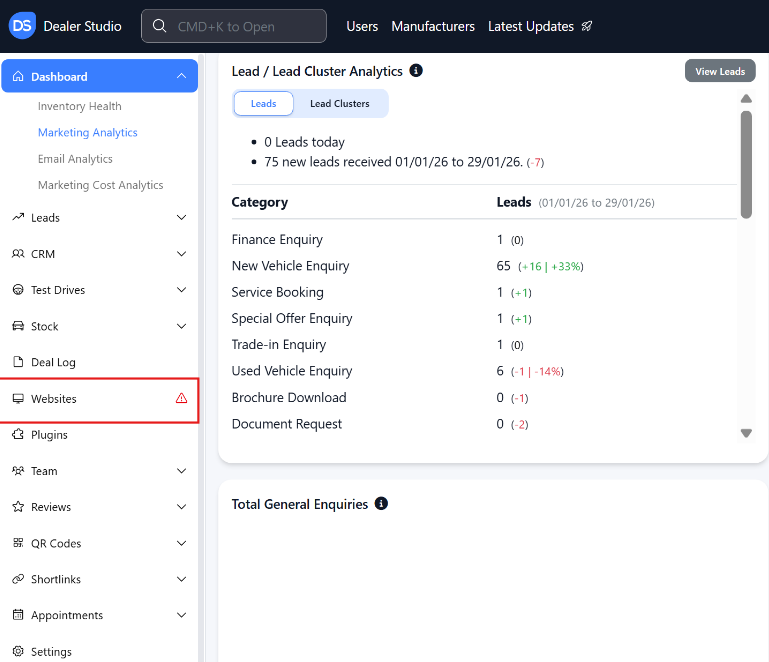 Step 2: Navigate to the Website you want to enter your ID into (GTM, GA4 or Google Verification)
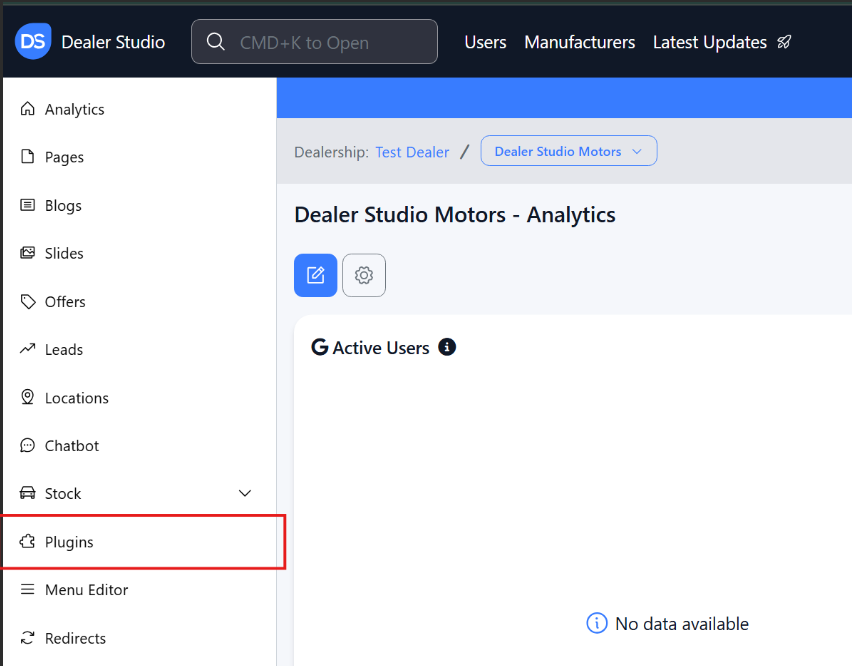
Step 3: On the Left-Hand menu, please select 'Plugin's'
 Step 4: Enter in your provided code:
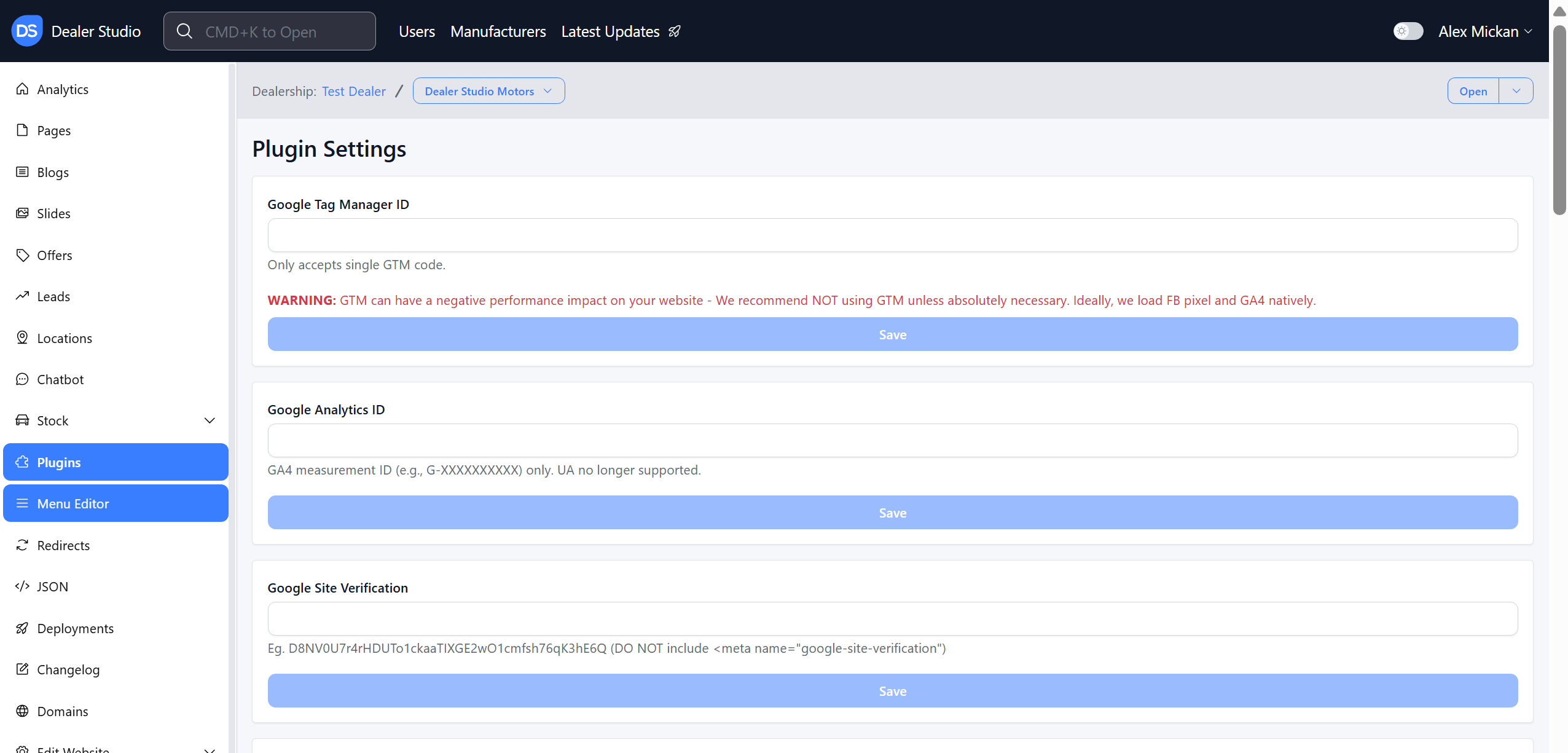
Google Tag Manager helps you manage and deploy tracking codes on your website without needing to edit the site’s code each time.
Centralises all marketing and analytics tags in one place
Allows quick updates to tracking without developer involvement
Improves site performance and reduces tracking errors
Google Site Verification confirms that you own or manage a website so you can access Google’s tools.
Verifies site ownership for services like Search Console
Enables access to search performance and indexing data
Helps Google trust and properly manage your website
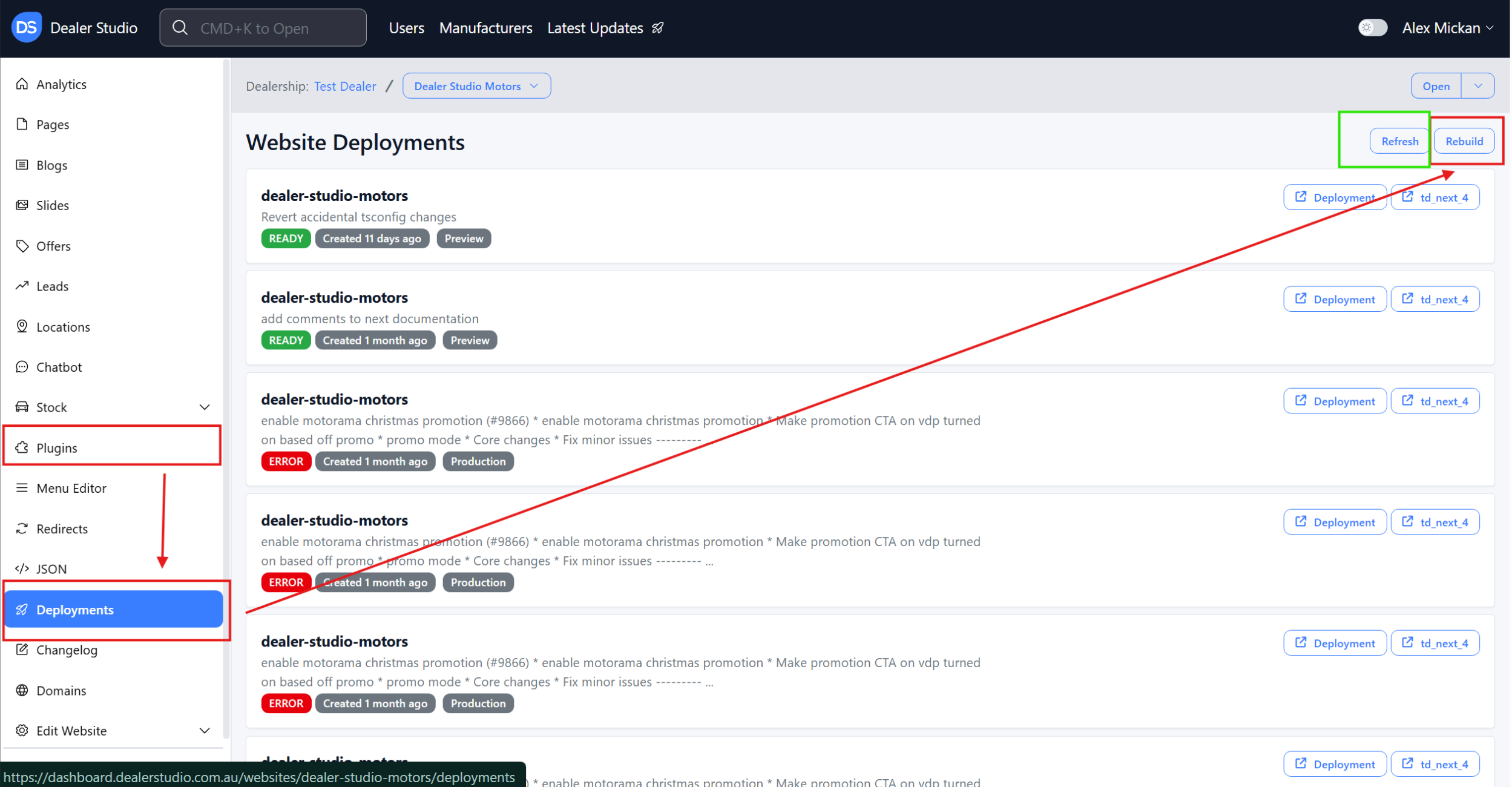
Step 5: Rebuild your website to push the change through
Was this article helpful?
That’s Great!
Thank you for your feedback
Sorry! We couldn't be helpful
Thank you for your feedback
Feedback sent
We appreciate your effort and will try to fix the article