This process shows how to set up lead notifications for a specific website page by navigating through the Dashboard, selecting the page, and enabling Custom Notification to assign recipients.
Step 1: On the Dealership Dashboard, select Websites and click the desired website to edit
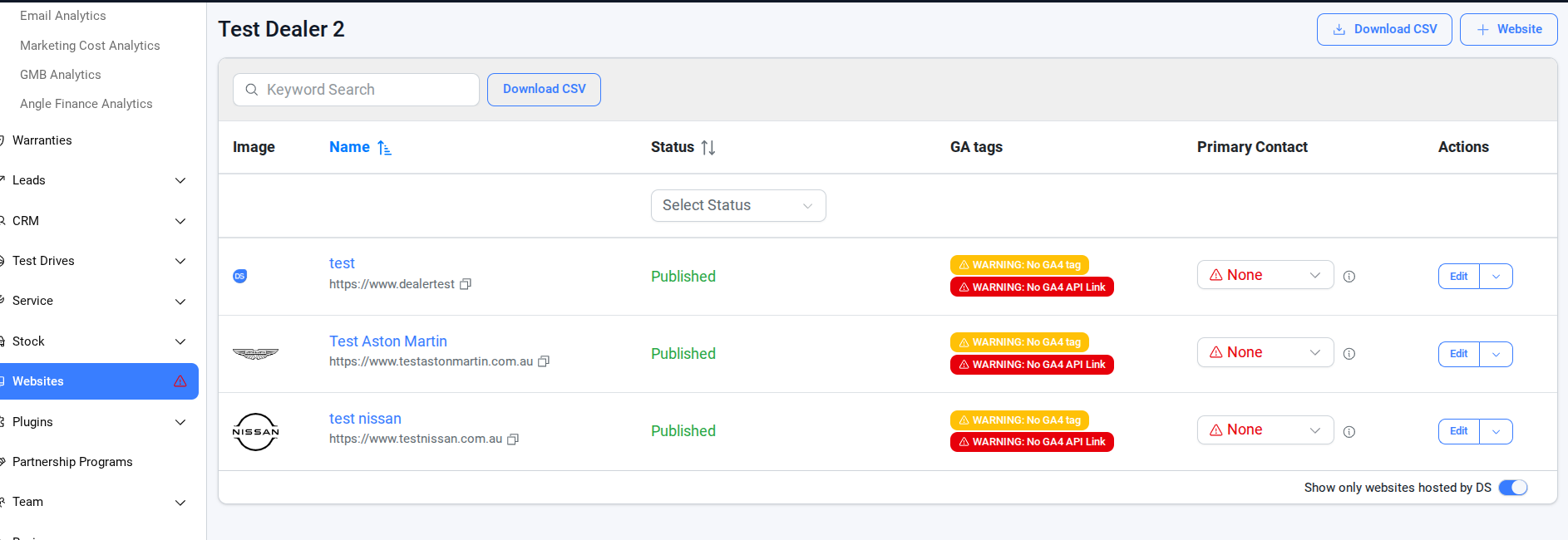
Step 2: Once on the Website Dashboard, select Pages
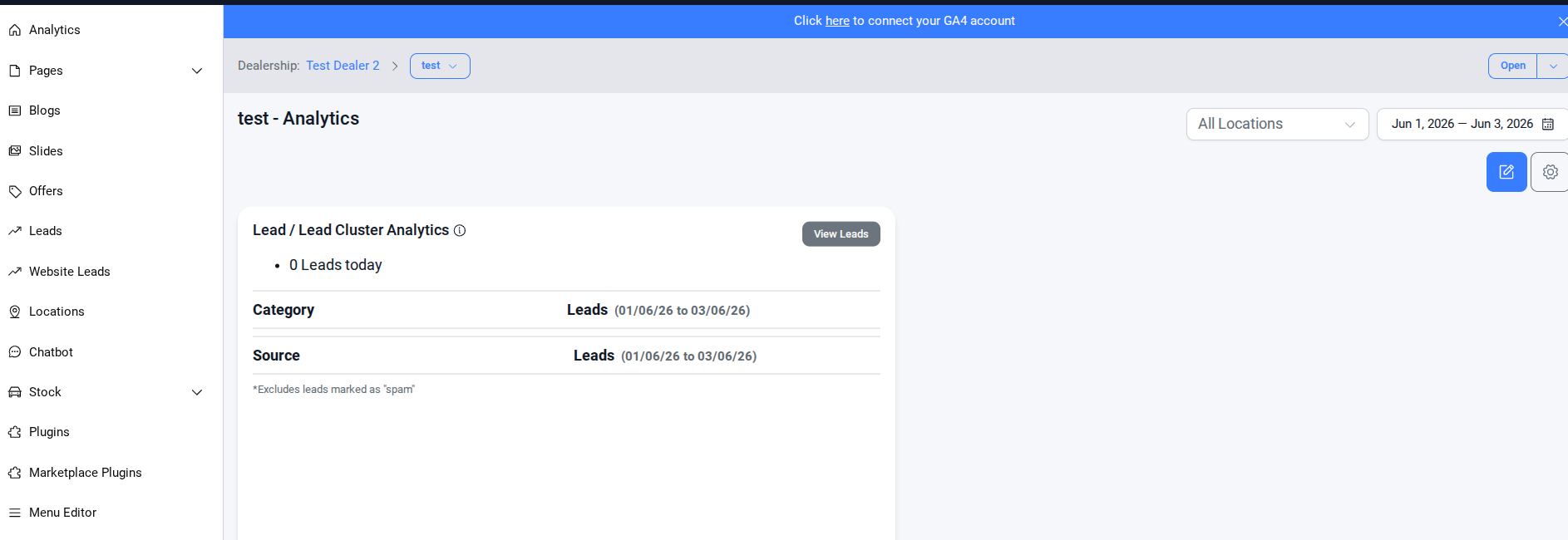
Step 3: Select the page you want to edit

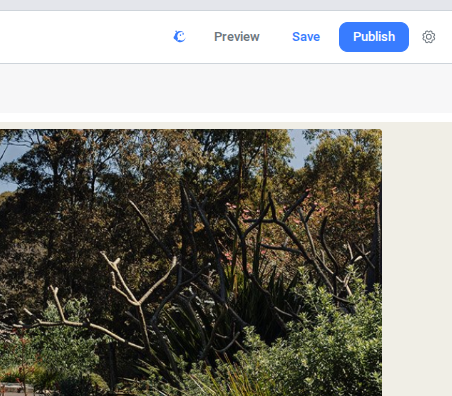
Step 4: Click Setting in the selected page
Step 5: Scroll down to the bottom -> Click Custom Notification
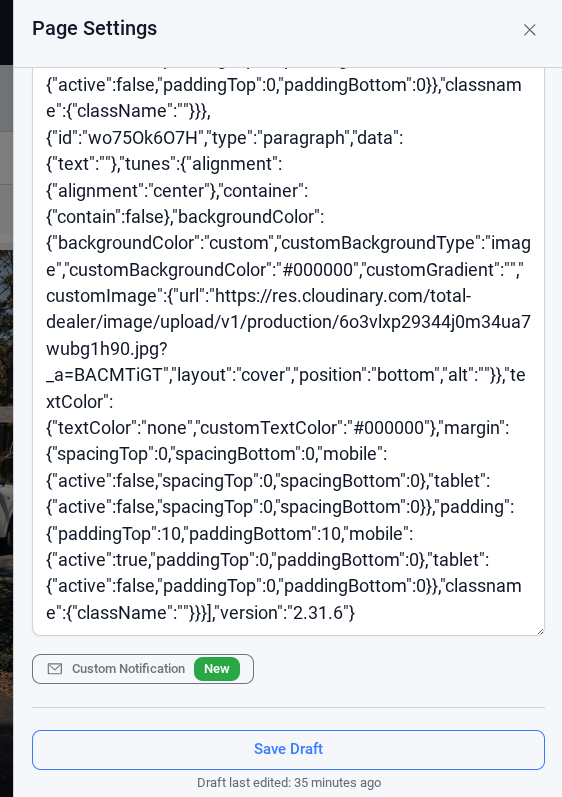
Step 6: Add the user(s) who should receive the lead and save
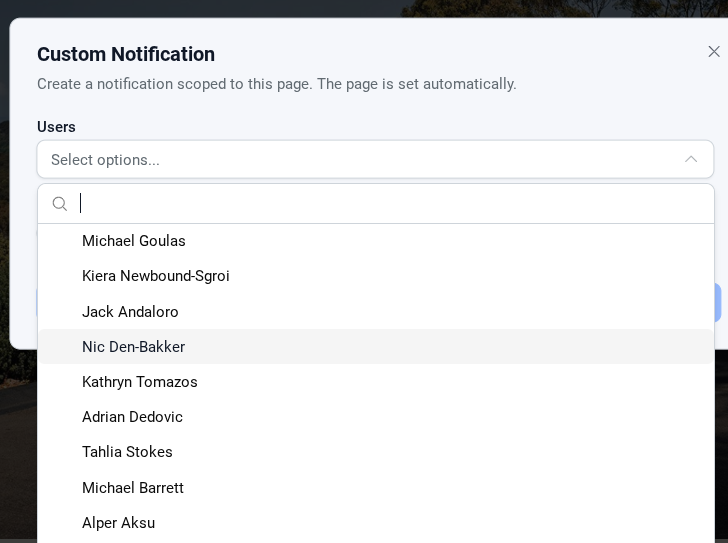
Once set, all leads from that landing page will go directly to the specified user.Once configured, leads are sent directly to the selected users, ensuring faster responses and better lead management.
Was this article helpful?
That’s Great!
Thank you for your feedback
Sorry! We couldn't be helpful
Thank you for your feedback
Feedback sent
We appreciate your effort and will try to fix the article