This guide provides a detailed, step-by-step walk through for adding popup banners to your pages using the Page Editor. It covers all necessary actions, from accessing the editor to customizing and publishing the banners, helping users enhance their website’s interactivity and engagement.
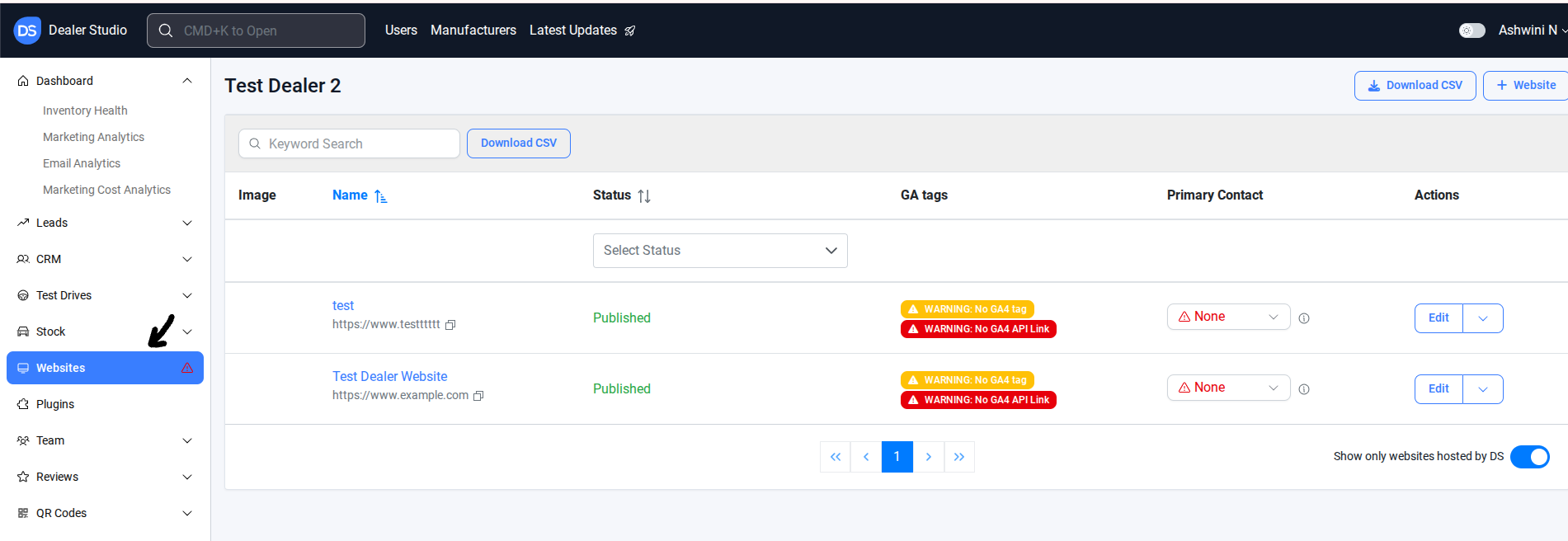
#Step 1: On the Dealership Dashboard, select Websites
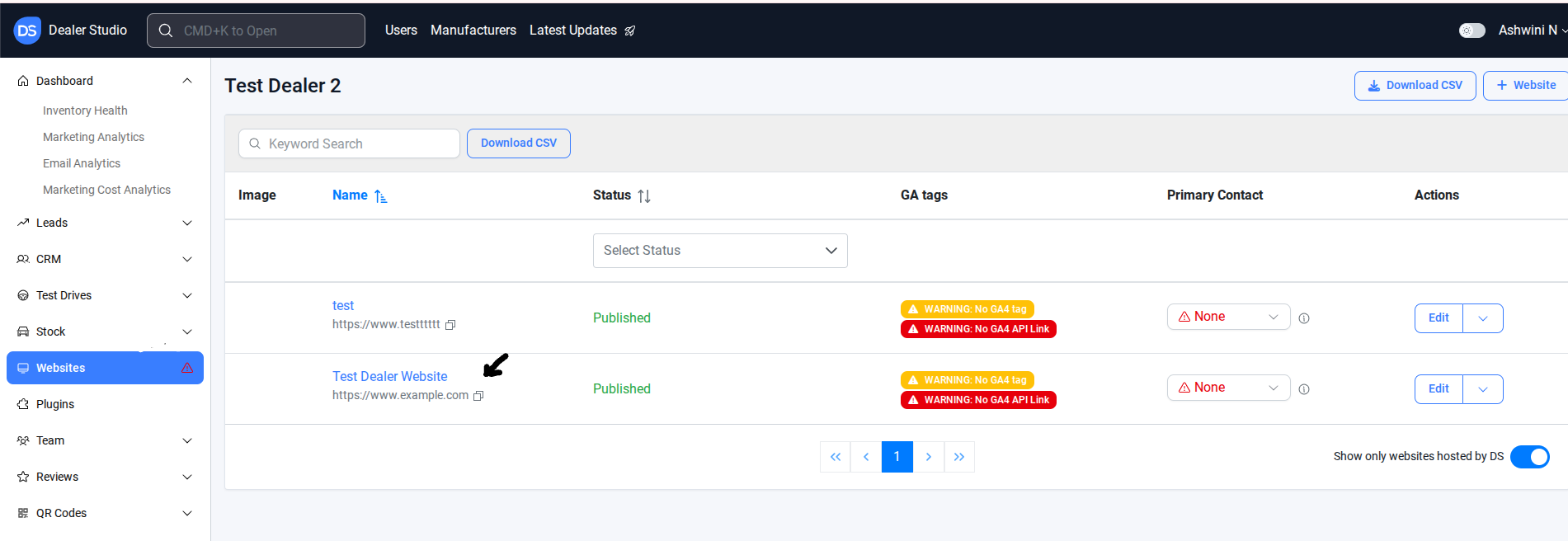
# Step 2: Select the desired website to add popup banner
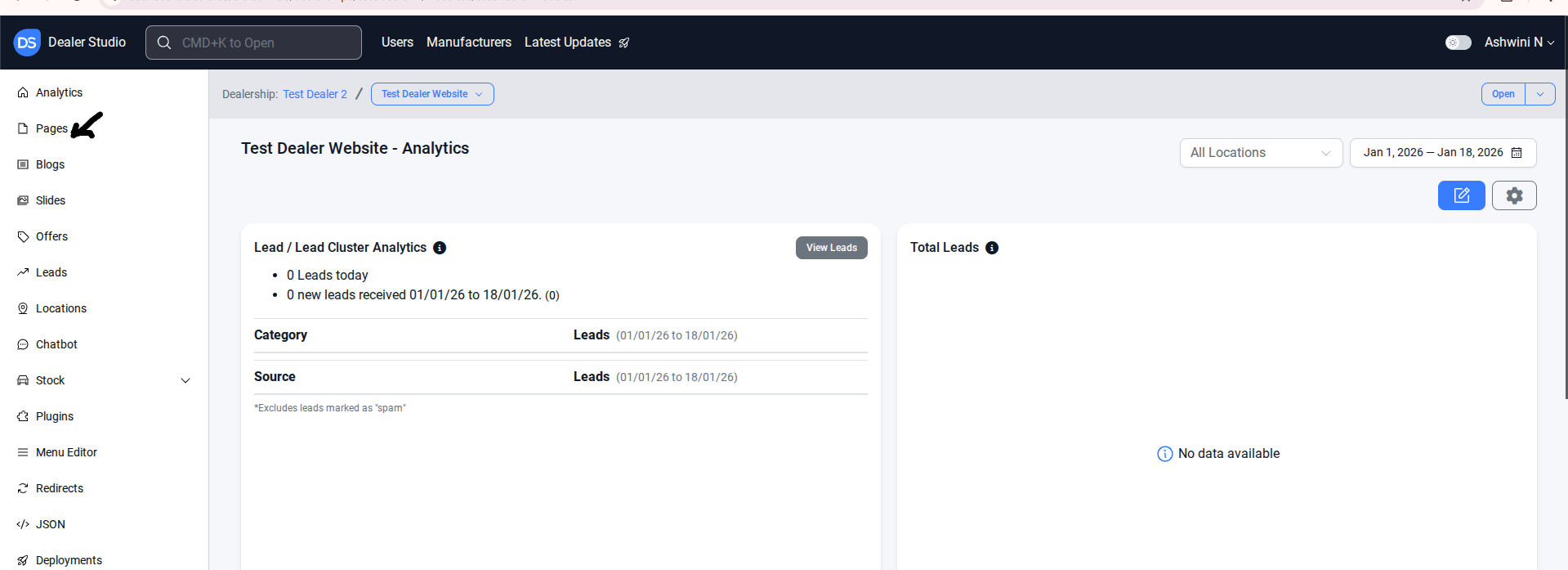
# Step 3: Select the page on your left-hand side
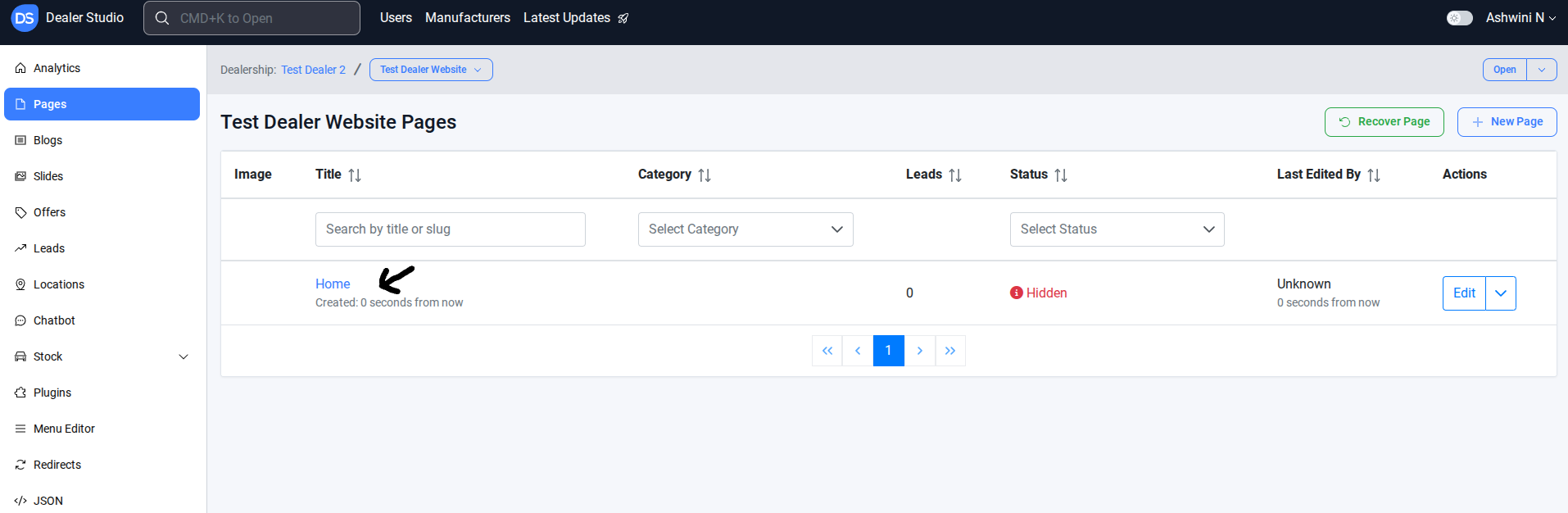
#Step 4: Select the home page to add popup banner.
#Adding Popup Banners on Your Pages
Navigate to the desired area of the page. Hover your mouse over the left-hand side until the '+' icon appears. Click on the icon, then scroll down and select the Custom Component button.
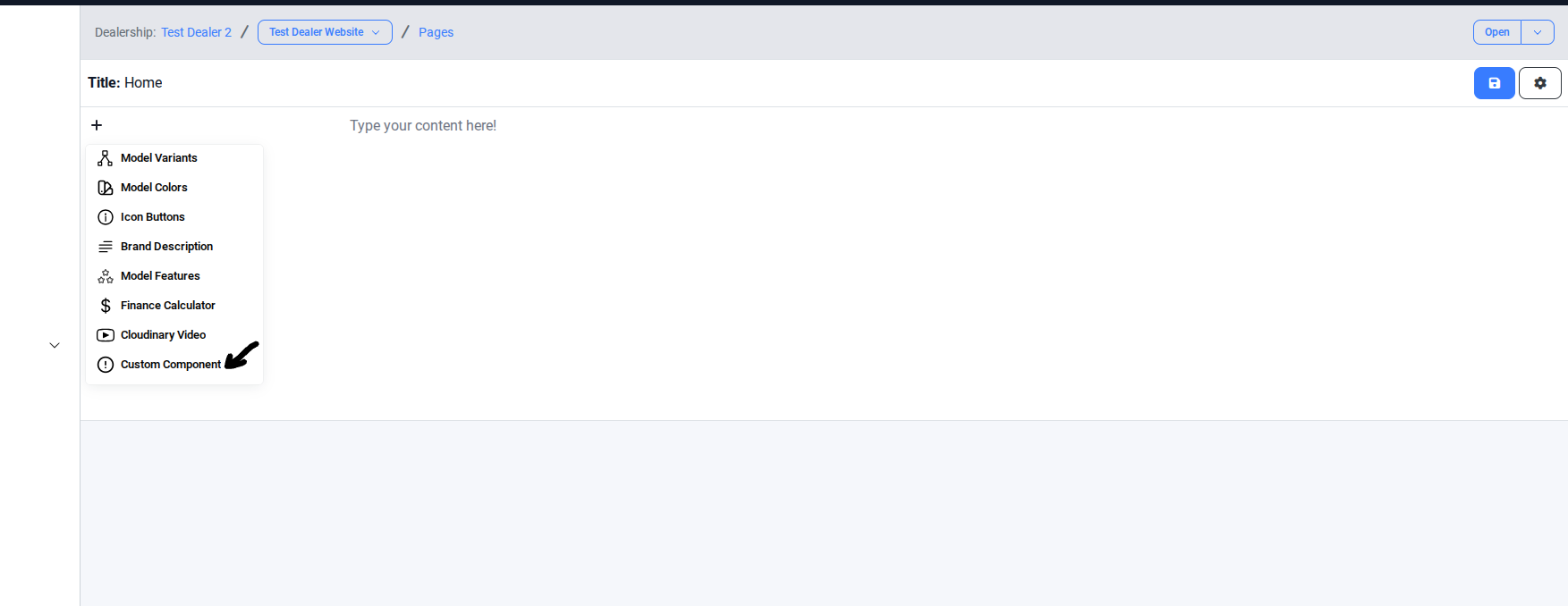
Select Component
In the Component section, select Custom.
Under Custom Component, choose Popup.
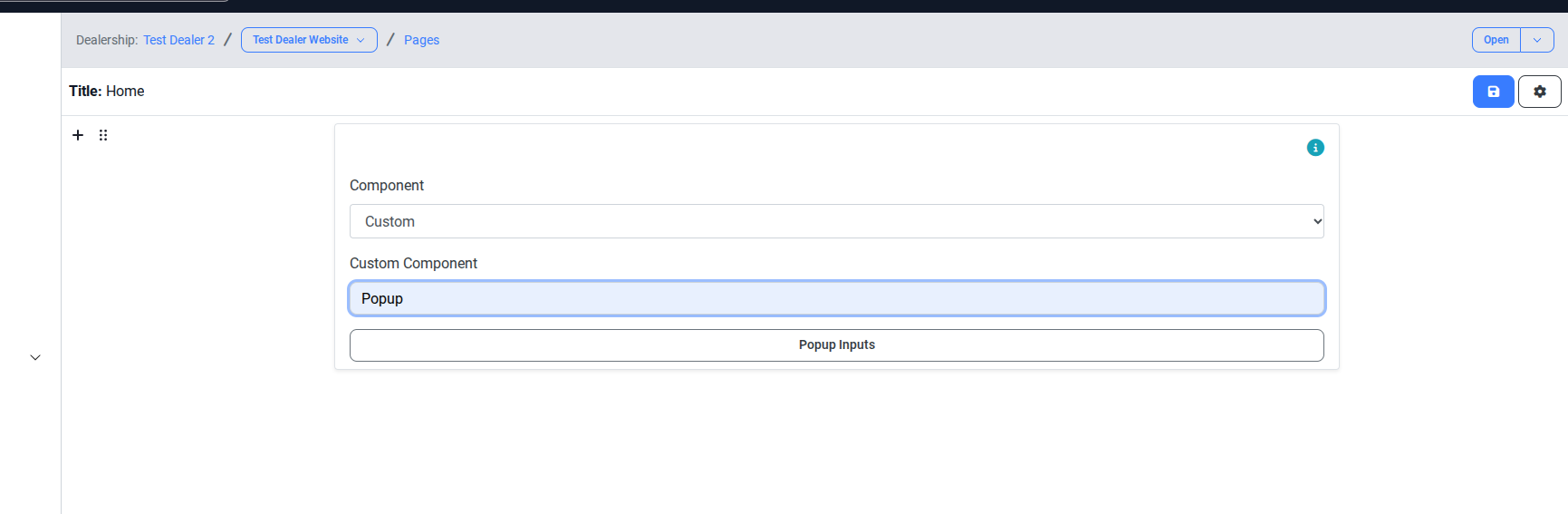
Add Media
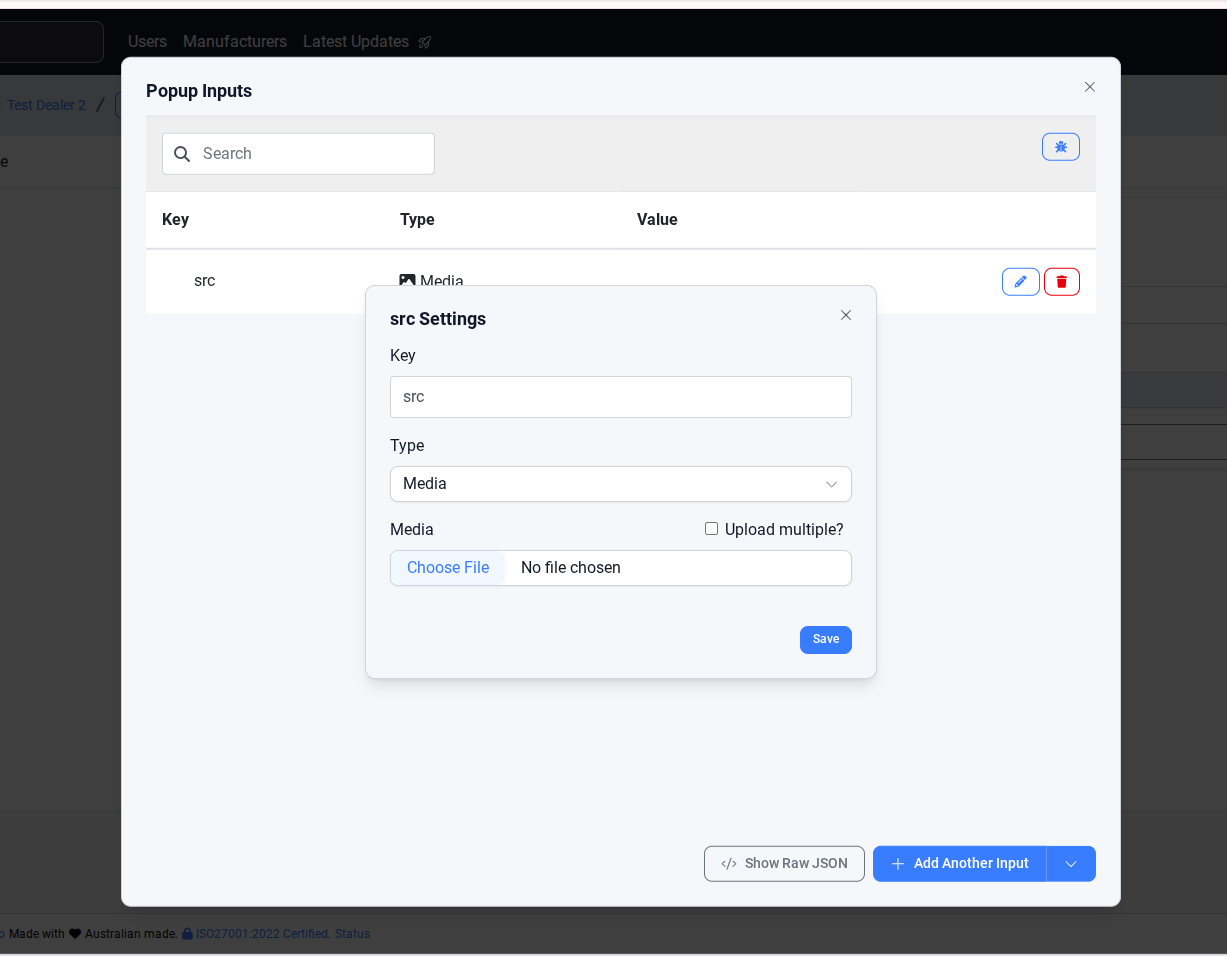
In the Popup input section, set the key to
src.Choose type as
media.Upload the desired media file.
Add Expiry Date (Optional)
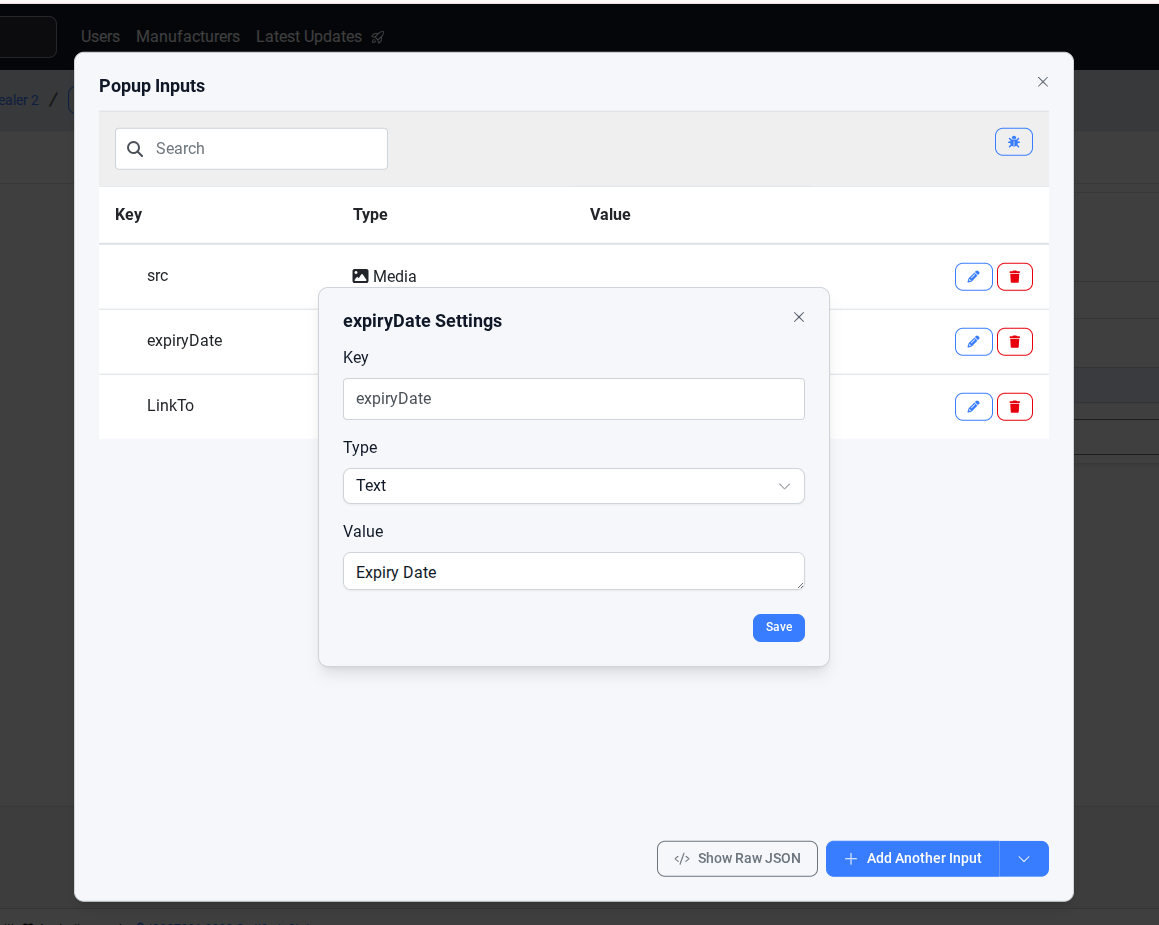
If the client requests an expiry date for the banner, add a new input.
Set the key as expiryDate (or similar) and type as date.
This allows the banner to expire automatically on the chosen date.
Add Link
To make the banner clickable, add another input with the key LinkTo.
Set the type as link/page and provide the URL or select the page you want the banner to navigate to.
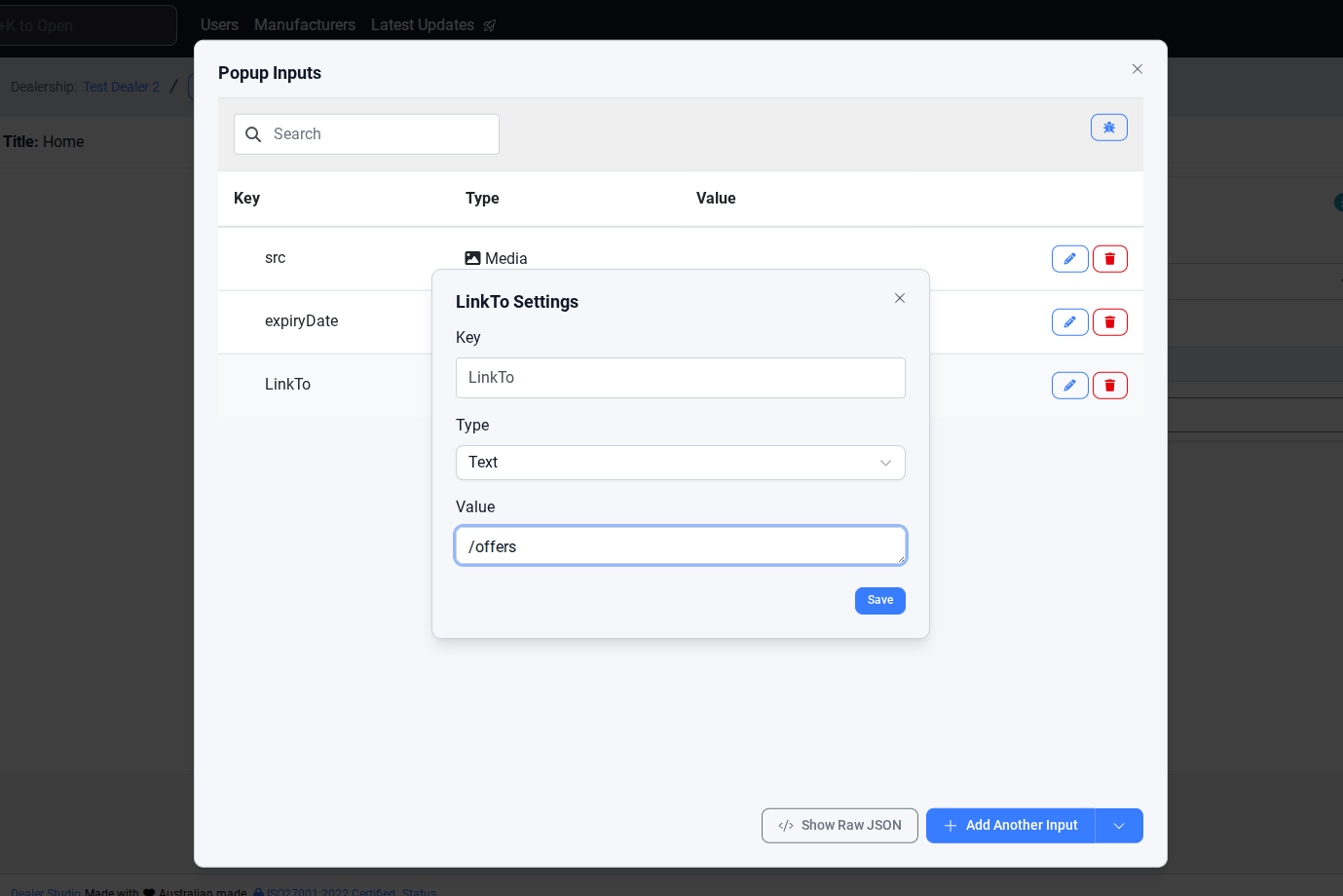
You can also add title, description, and buttonText as popup inputs to define the text content displayed in the popup itself — such as the main heading, supporting message, and the call-to-action button label. These additional input fields allow you to customise what users see when the popup appears on the page.
By following these steps, you can successfully add and configure popup banners, including media, expiry dates, and links. This ensures your banners display correctly and meet client requirements, enhancing engagement on your pages.
Was this article helpful?
That’s Great!
Thank you for your feedback
Sorry! We couldn't be helpful
Thank you for your feedback
Feedback sent
We appreciate your effort and will try to fix the article