Overview
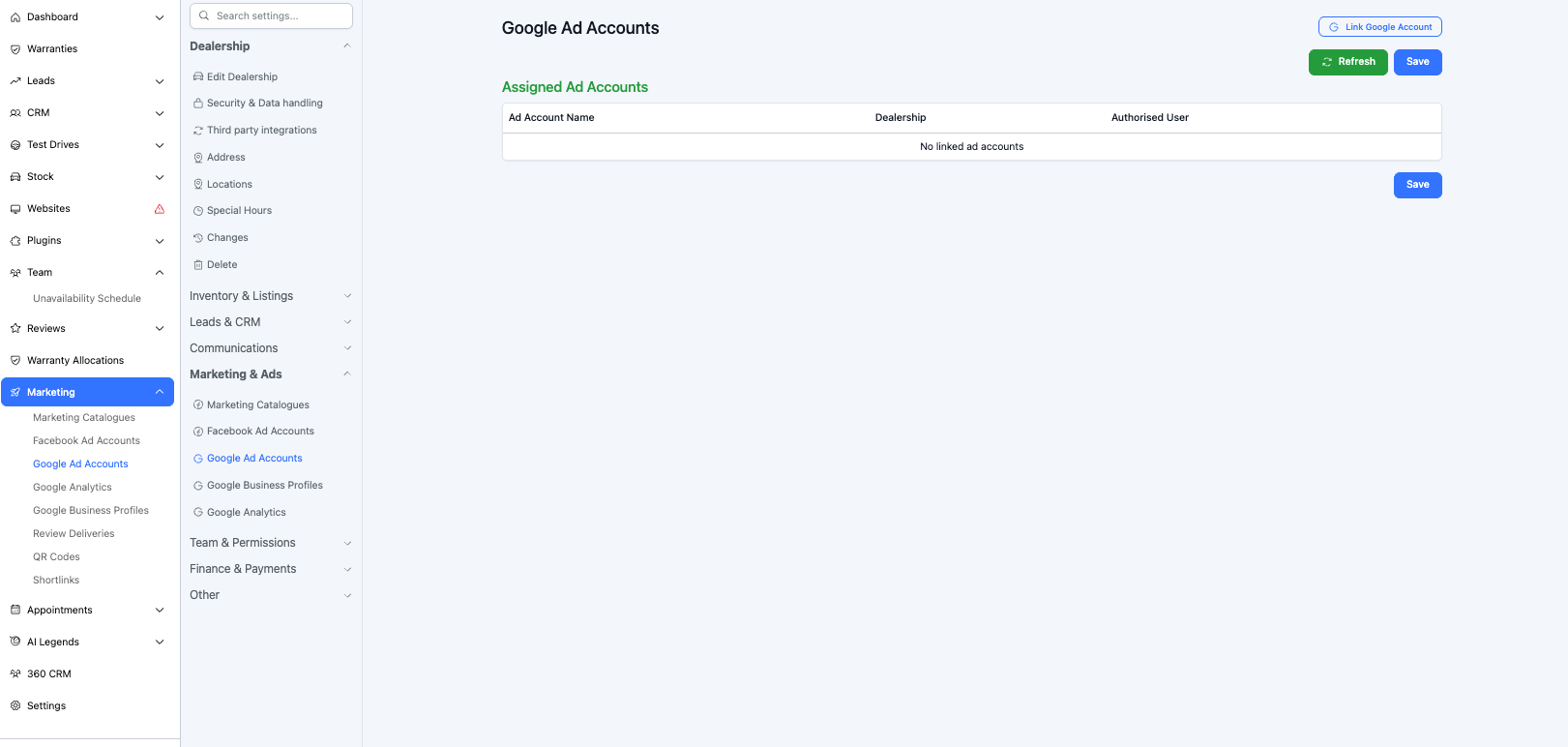
Dealer Studio can display your Google Display Ads performance data directly on your dashboard. To enable this, you need to link your Google account through the Marketing & Ads settings.
Steps
- Go to Settings > Marketing & Ads > Google Ad Accounts.
- Click Link Google Account.
- You will be prompted to sign in to Google and authorise the connection.
- Once approved, your Google Display Ads data will appear in your Dealer Studio dashboard.
Viewing Your Analytics
Once your Google account is linked, your analytics modules will be available to add to your dashboard.
- Go to Analytics in the main navigation.
- Click Edit.
- Your available modules will be listed under the Google Display Ads heading. Enable the ones you want to display on your dashboard.
Was this article helpful?
That’s Great!
Thank you for your feedback
Sorry! We couldn't be helpful
Thank you for your feedback
Feedback sent
We appreciate your effort and will try to fix the article