
AI Background Remover
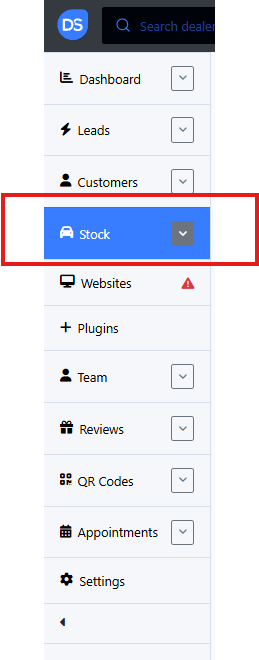
Step 1: Access Your Car Listing
Navigate to the page where you manage your car listings. Locate the specific listing to which you want to add/remove pictures.

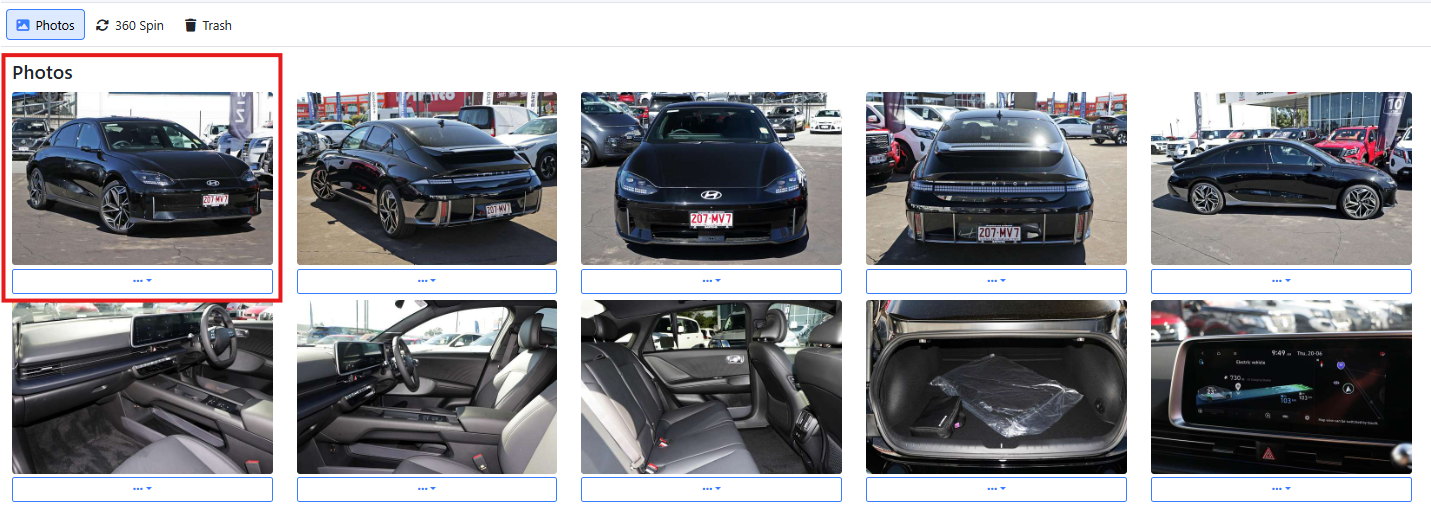
Step 2: Select the target image
Once you have selected the specific listing, look for the image you want to have the background removed.
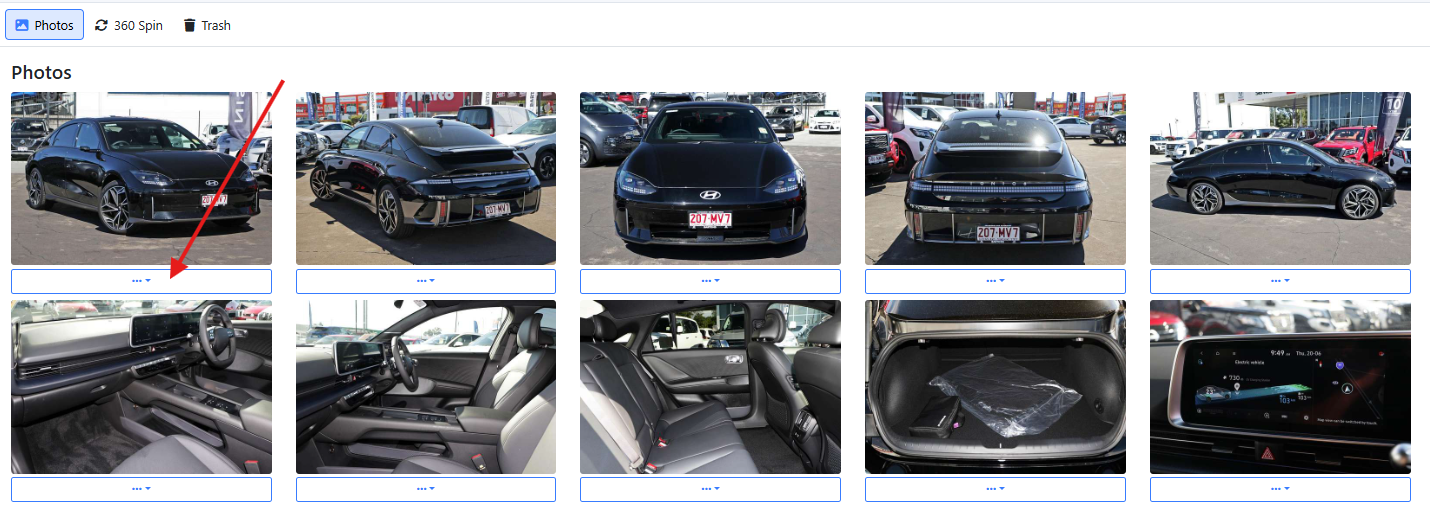
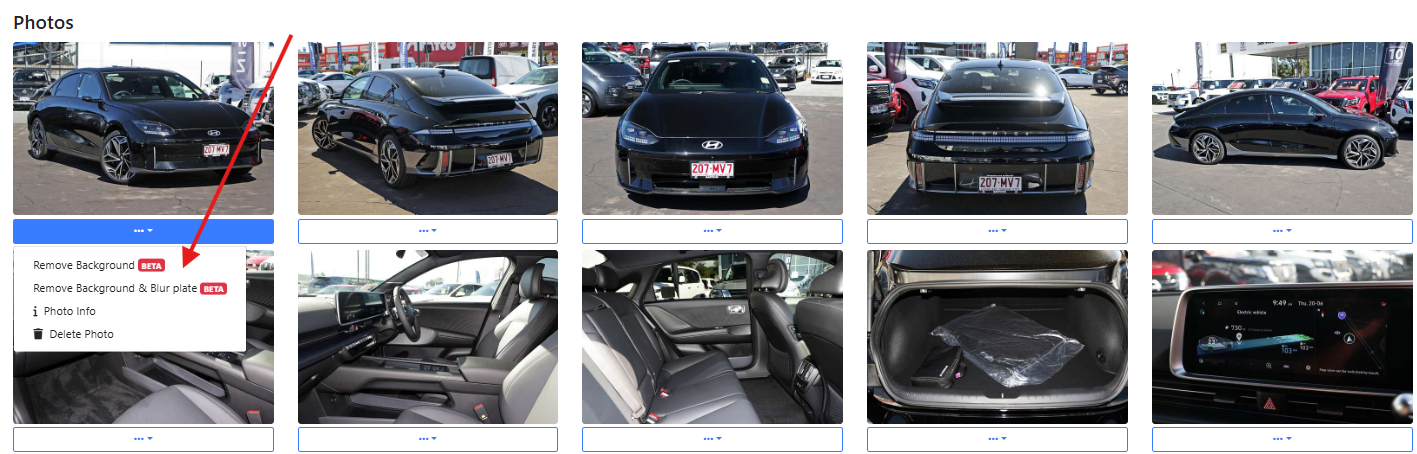
Step 3: Select 'Remove Background'
Look for the three dots icon and select the option within the menu. You can choose between two options, "Remove Background" which only removes the background of the image or "Remove Background & Blur plate" which also blurs the car registration.
Step 4: Hover mouse in Preview
By hovering your mouse left and right, the preview will show image of before the background is removed, and the image after the background is removed. This is a good way to check if the background remover is doing the work correctly.
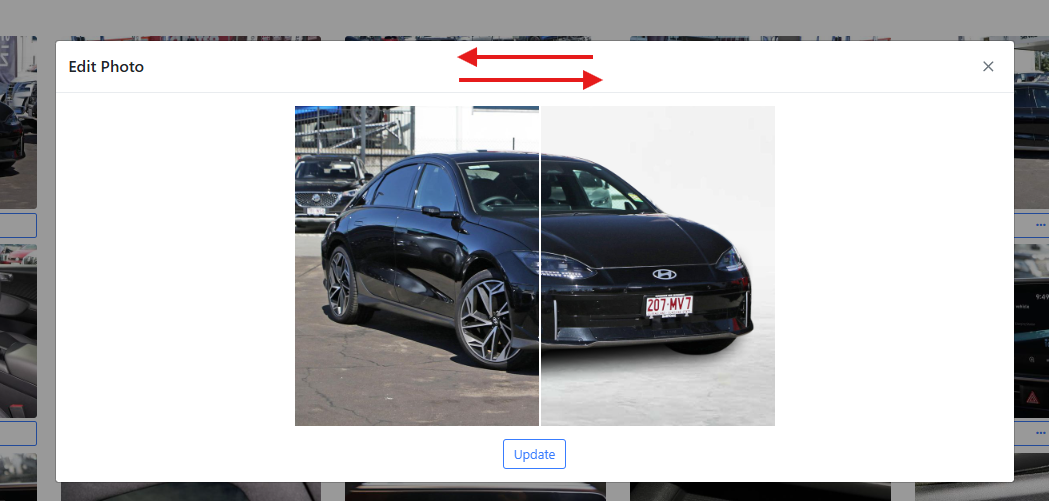
Step 5: Update Image
After checking that the background is removed properly, click 'Update' and the background will be removed from the image.
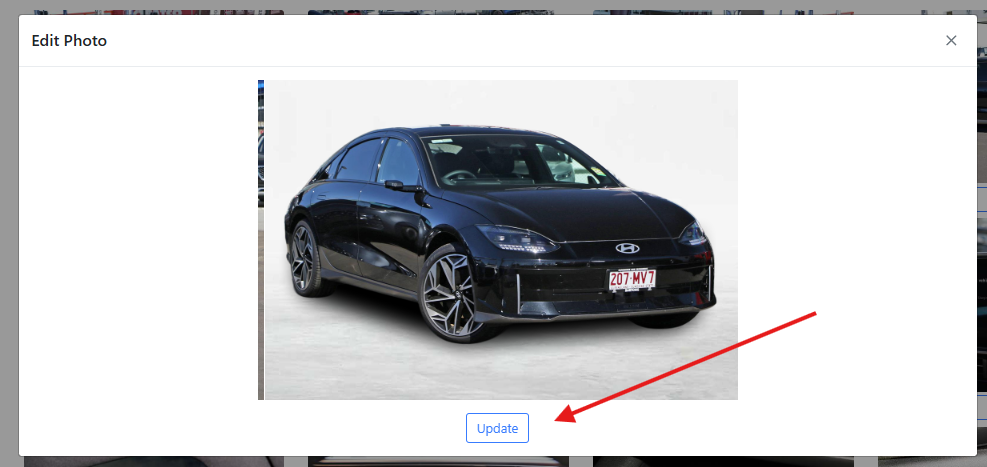
Once the above steps are all done, there is no need to save anything as once you have clicked 'Update', the image will automatically be replaced with the one without background.
Happy Editing!