Step 1: On the Dealership Dashboard, select Websites
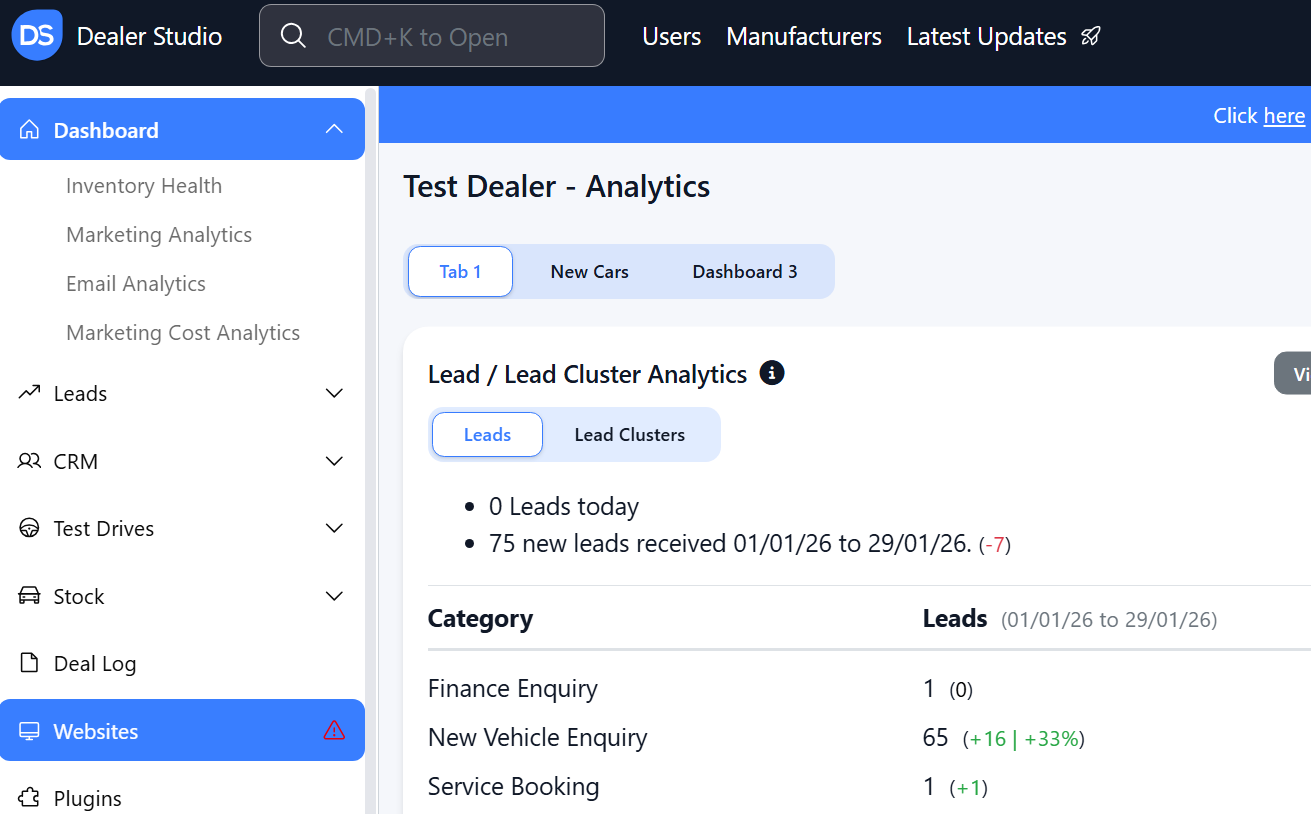
Step 2: Select the Desired Website to edit
Step 3: Once on the Website Dashboard, select Pages
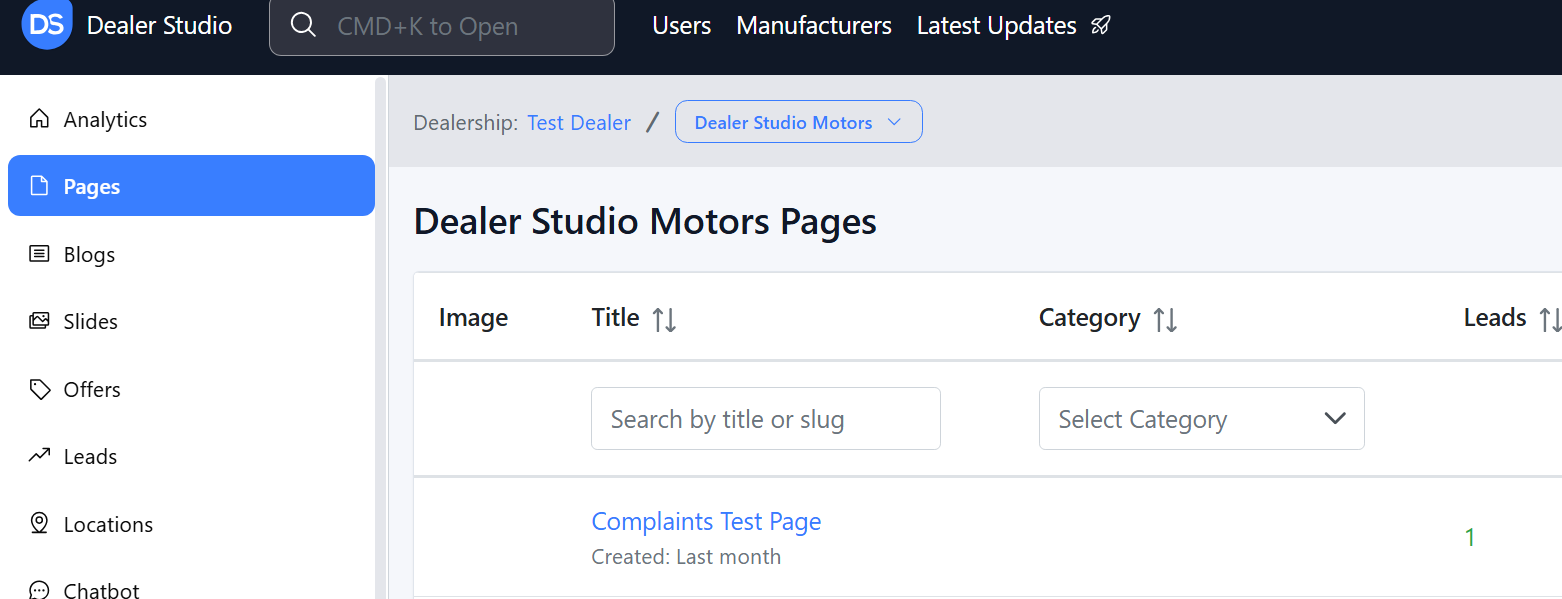
Step 4: Select the page you want to edit
Adding in the Waterfall Button

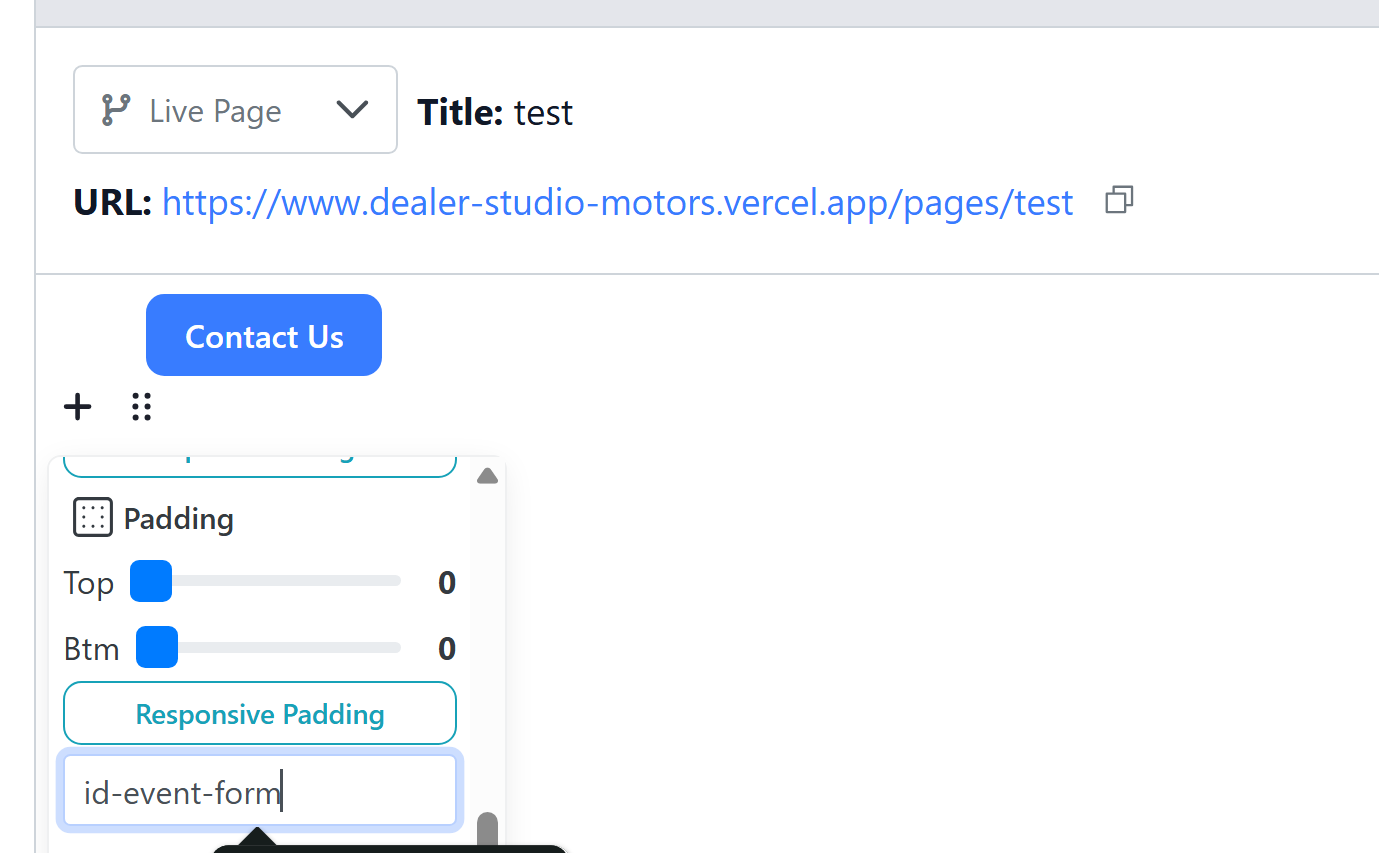
2. Click the 6 dots, then scroll to classname
3. Add in 'id-' and then any amount of text to clarify what it is e.g.
3. Add in 'id-' and then any amount of text to clarify what it is e.g.
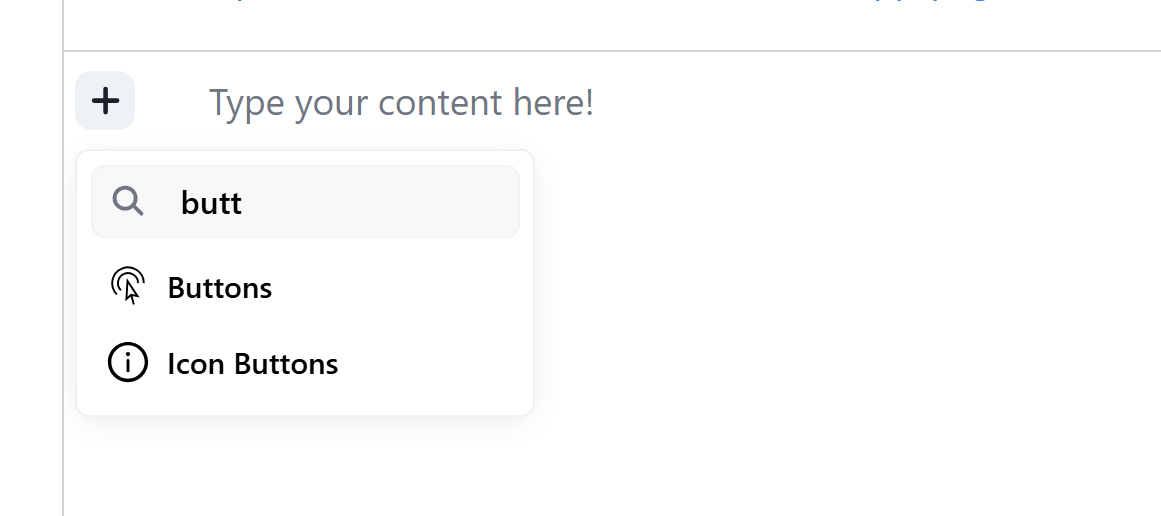
 4. Please go add in a Button ('+')
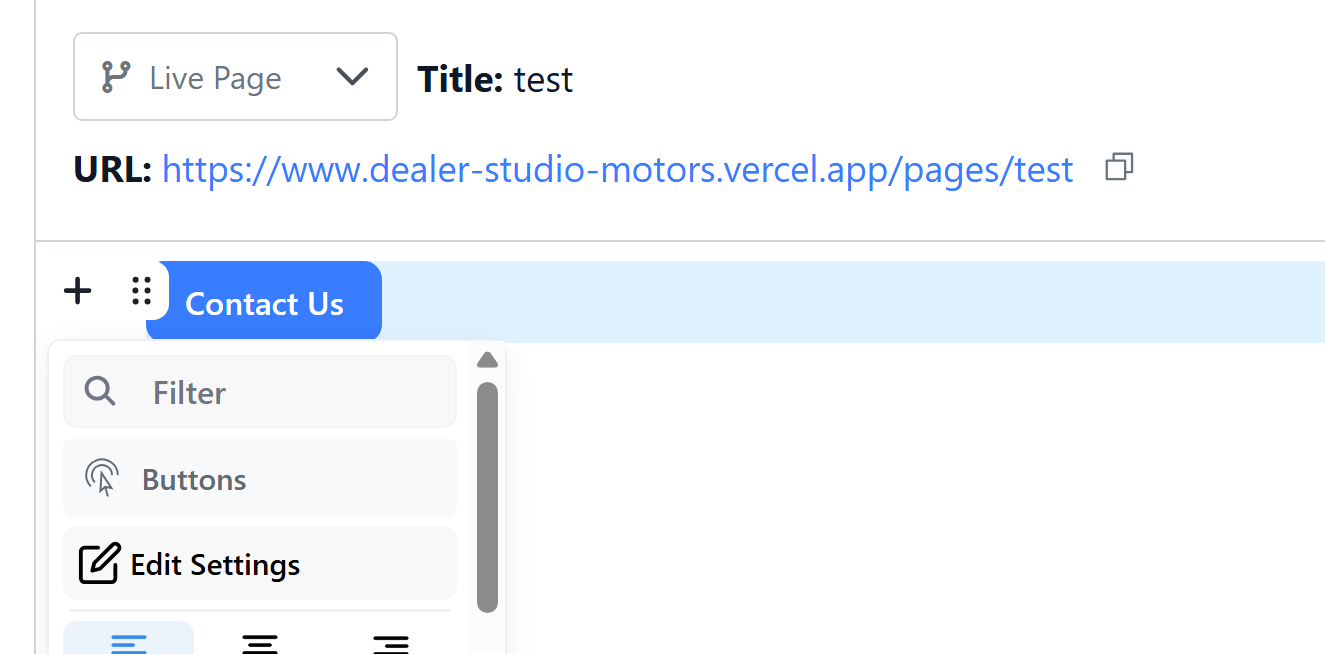
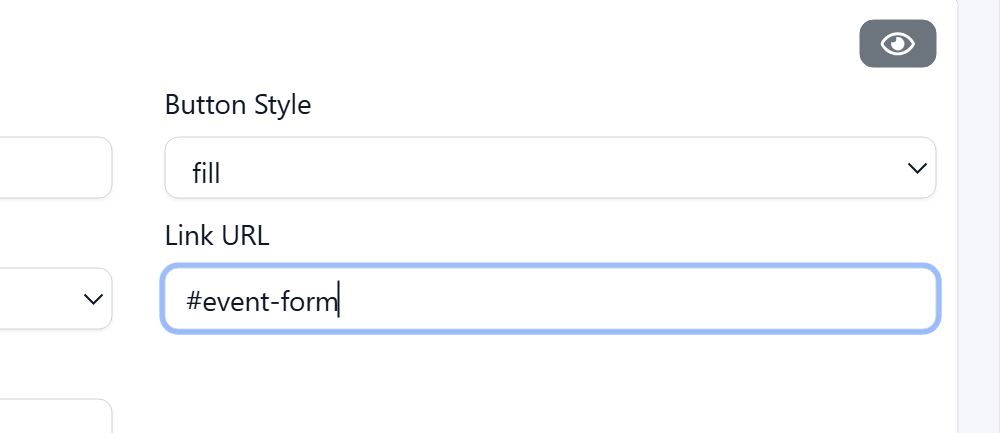
7. Publish the page
Please see video for clarity
https://res.cloudinary.com/total-dealer/video/upload/v1769746043/waterfall_wnzq2z.mp4
Was this article helpful?
That’s Great!
Thank you for your feedback
Sorry! We couldn't be helpful
Thank you for your feedback
Feedback sent
We appreciate your effort and will try to fix the article