
Adding Careers / Job Positions
You can easily add job positions to your Careers page through the dashboard. This allows you to link job titles to dedicated pages that include a brief job description, an enquiry form, and even the option to upload attachments (like resumes or cover letters).
These jobs will automatically populate on your careers page where a user can apply specifically for that position.
Finding Careers on the Dashboard
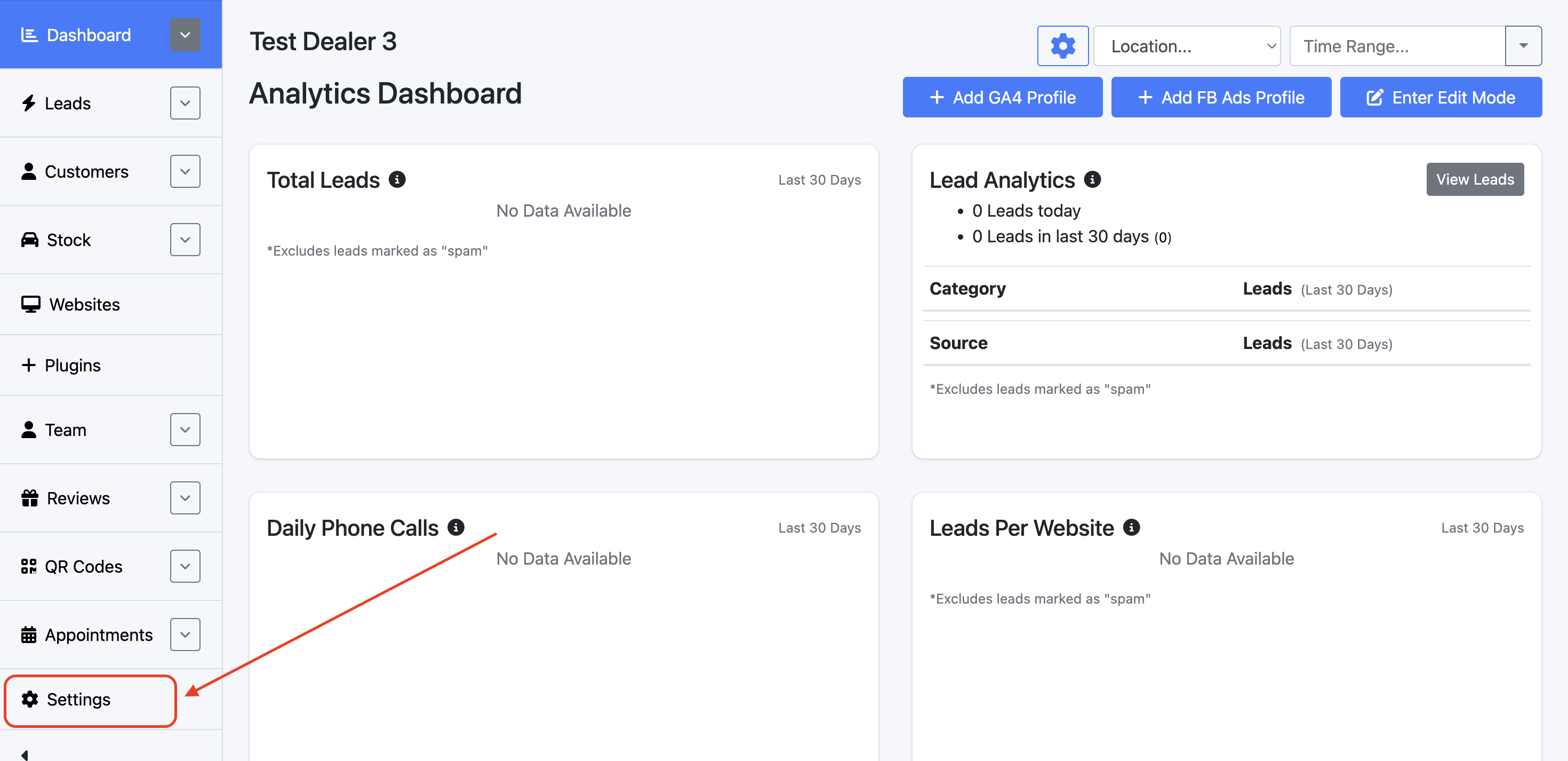
Step 1: On the Dealership level of the dashboard, select Settings
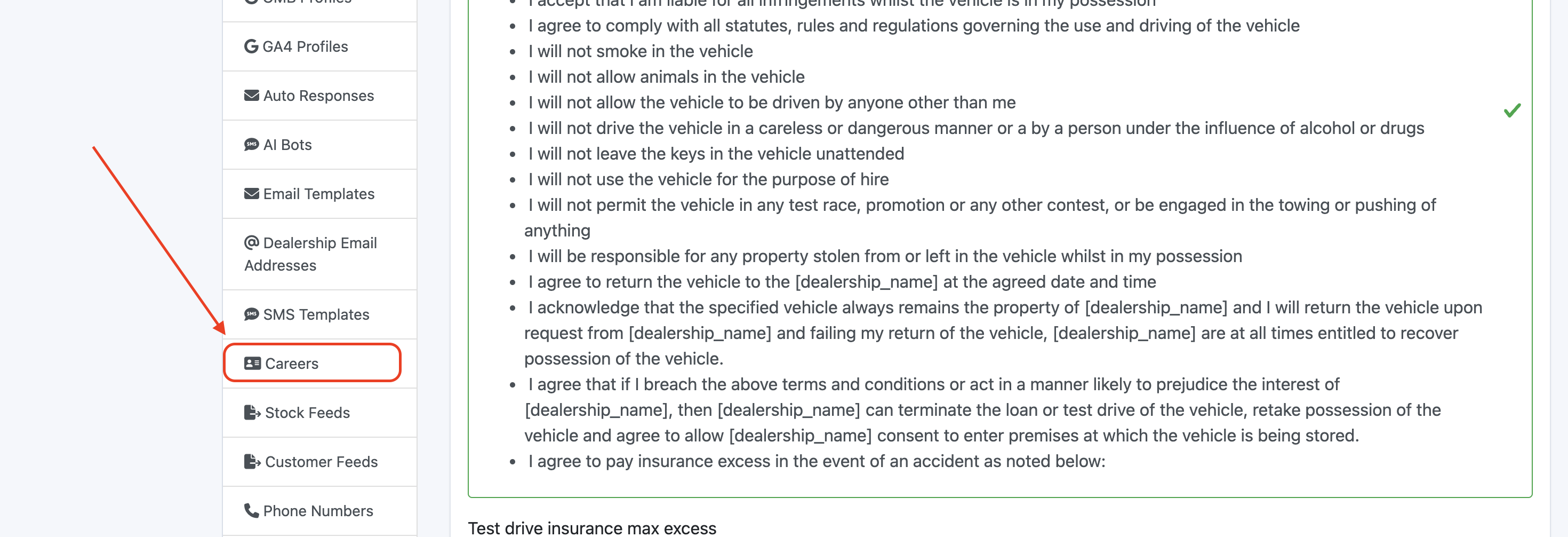
Step 2: Scroll down and select Careers
Adding a New Career
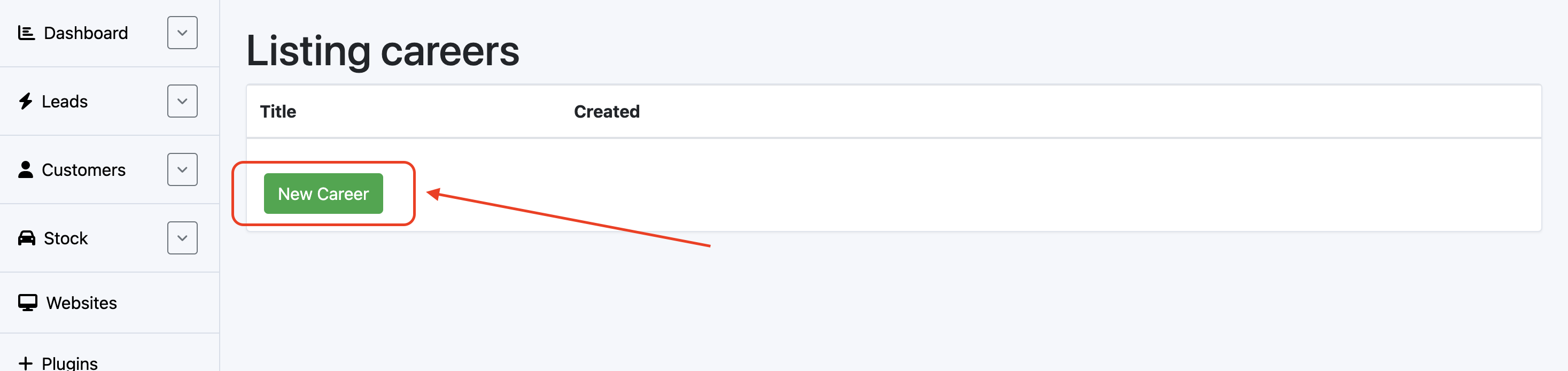
On the careers page, you will be presented with a list of careers that your dealership has made. To add a new career, select the green New Career button.
You will be asked to add a title, locations and content.
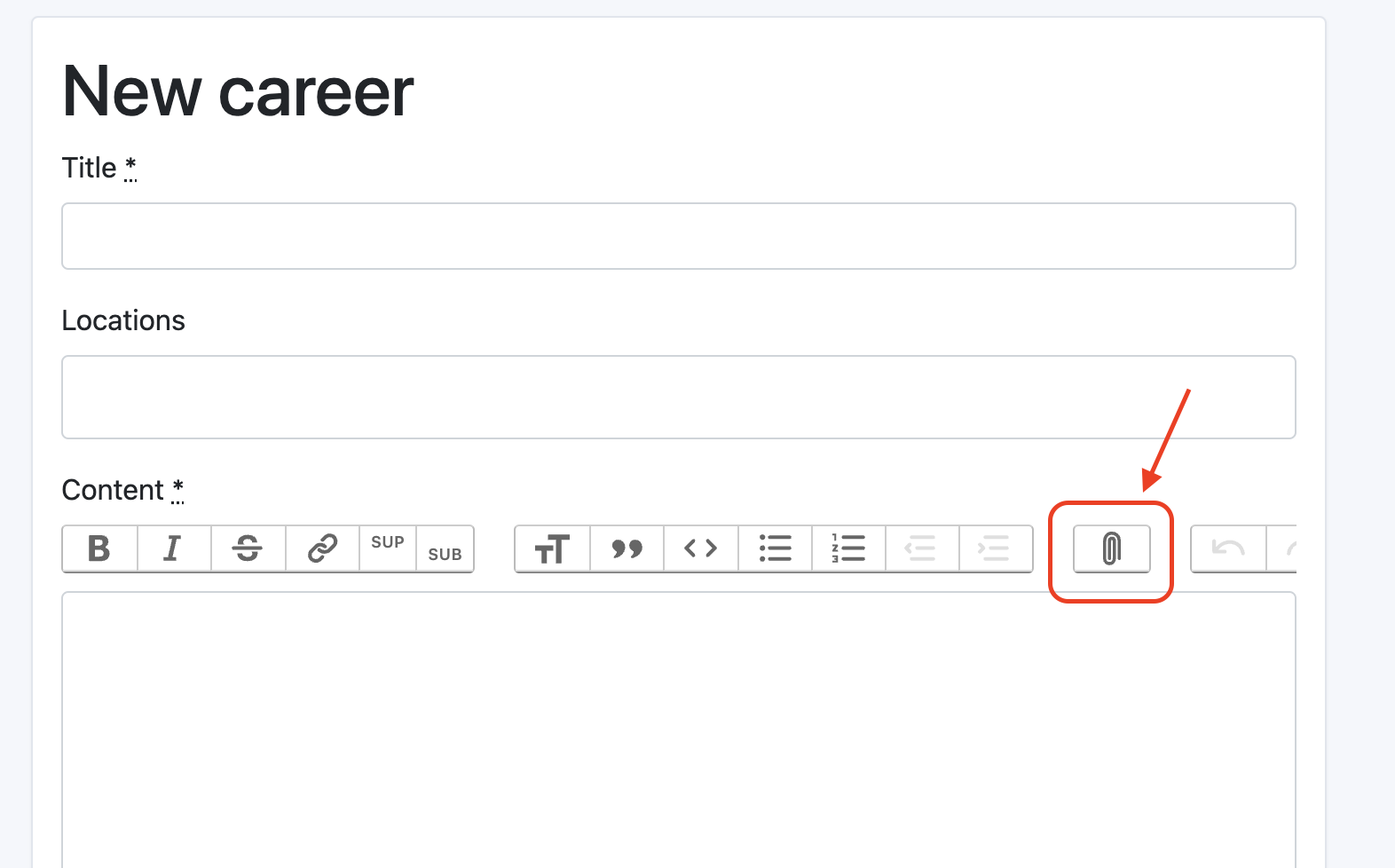
The Locations drop-down allows you to select one or multiple locations based on where you're hiring. Below, you can add Content such as the job description, and attach files by clicking the paperclip button. Ensure to select Create Career to finalise your changes.
Now, this will automatically show on the careers page of your website.
Adding Careers on Page Editor
In order to have a career display on a page, you will need to include a custom component on the Page Editor.
Step 1: On the Dealership Dashboard, select Websites

Step 2: Select the desired website to edit

Step 3: Once on the Website Dashboard, select Pages

Step 4: Select the website you want to edit

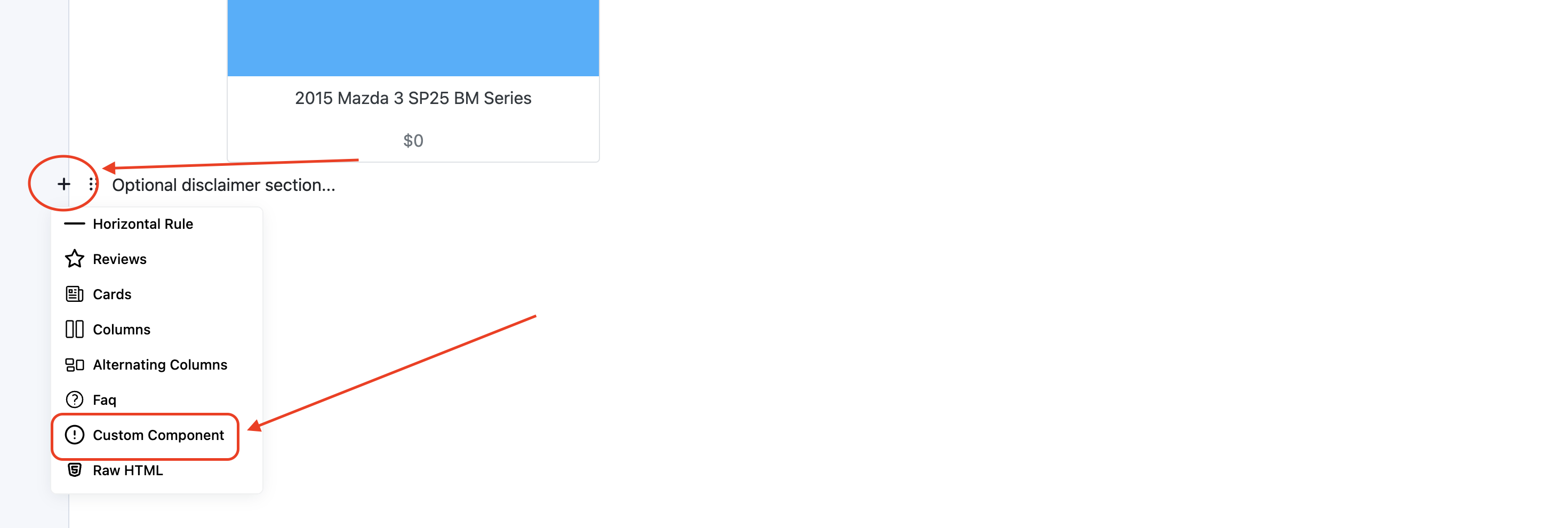
Step 5: Navigate to the desired area of the page. Hover your mouse over the left-hand side until the + icon appears. Click on the icon, then scroll down and select the Custom Component button.
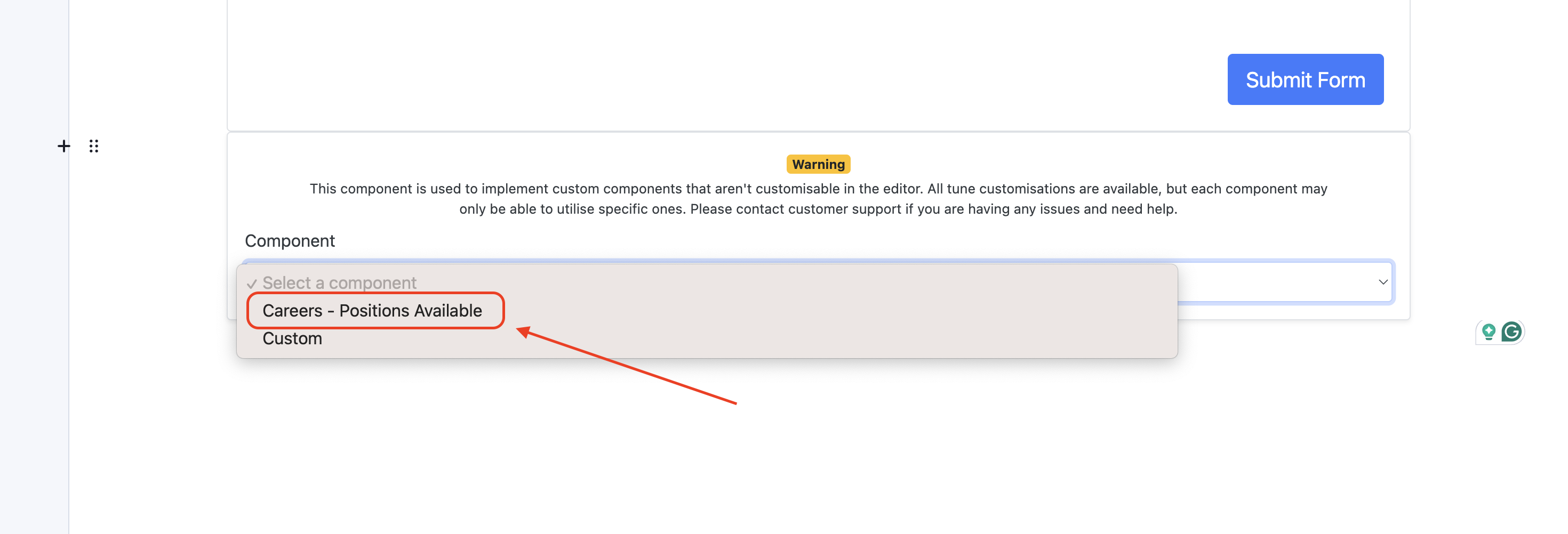
Step 6: From the Custom Component drop-down, select Careers
Ensure to save the page and preview it before publishing!