
Team Page
Finding the Team Page
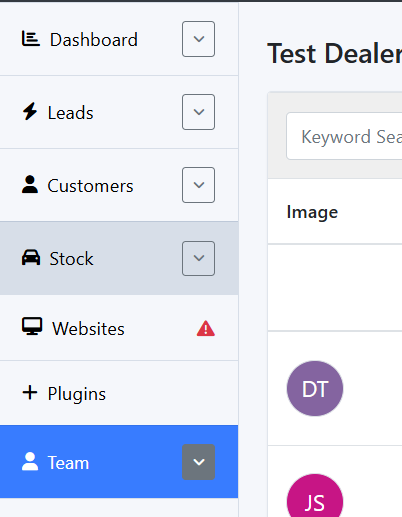
Logging into the Dealership, you need to be a manager to access this page
Navigate to 'Team'
Step 1 – Update User Details
For a user to appear on the team page, make sure their profile has:
- A profile image uploaded
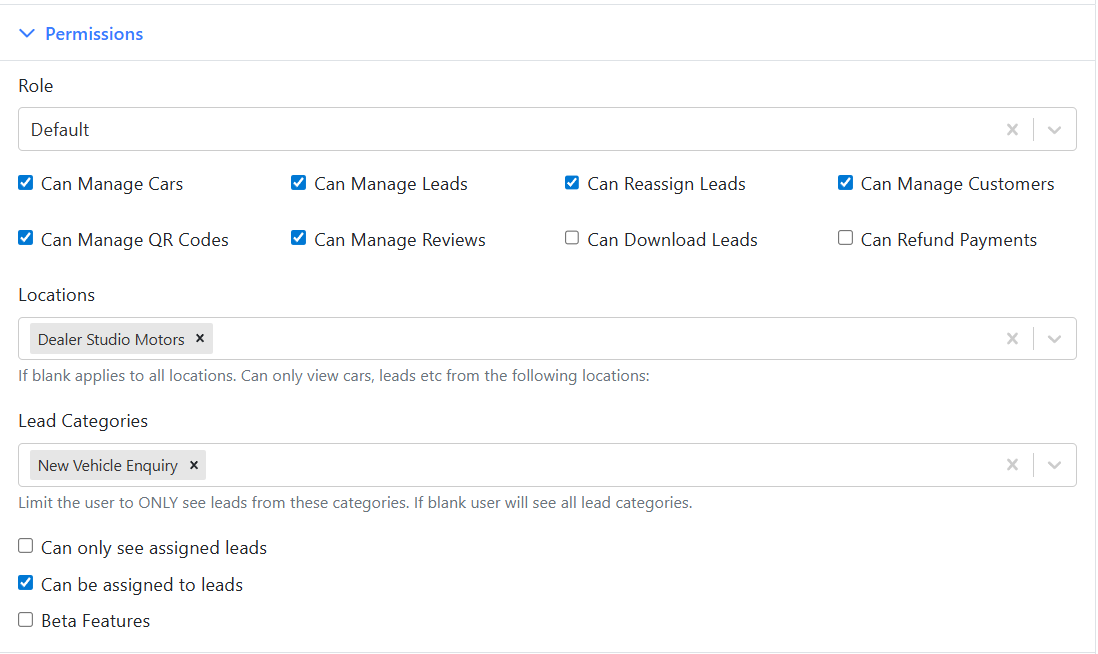
The correct website location (e.g., [Office Name] Toyota)
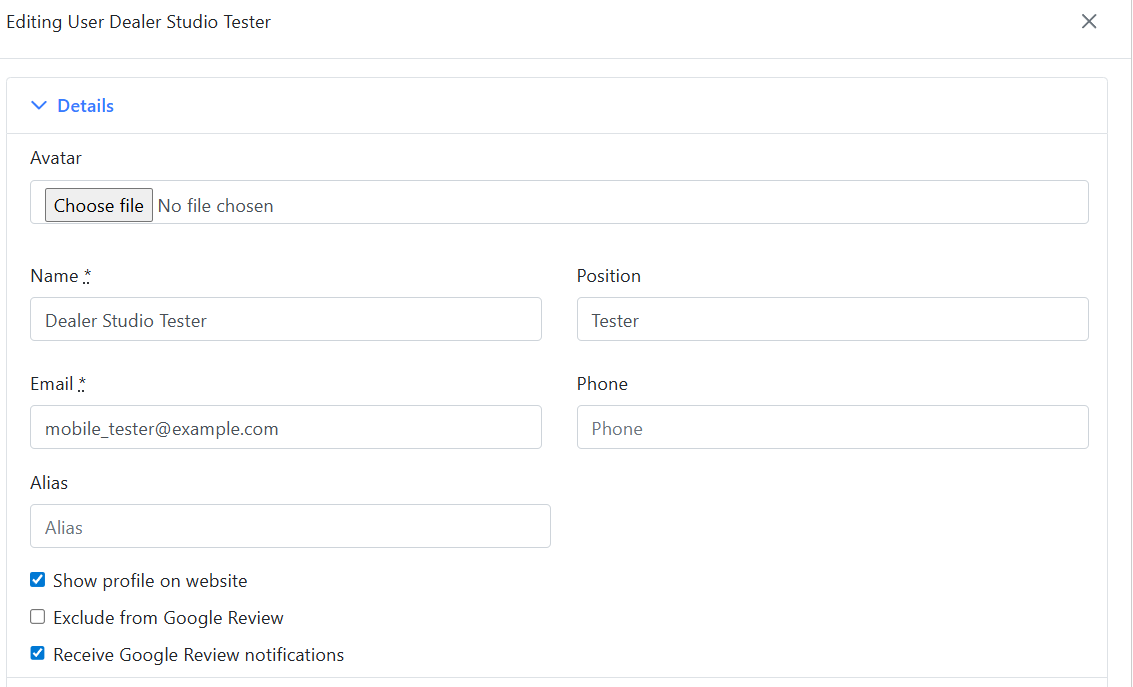
- The most relevant category selected
- The 'Show Profile on Website' option ticked (ensure this is checked)
Step 2 – Push Updates to the Website
Once you’ve updated the user details, ask us to push through any changes
(Note: This step is optional— soon these updates will push through automatically.)
Step 3 – Additional Information
- The most relevant category/department selected (this will show as the subheading on the team page)
Position & Bio (Optional)
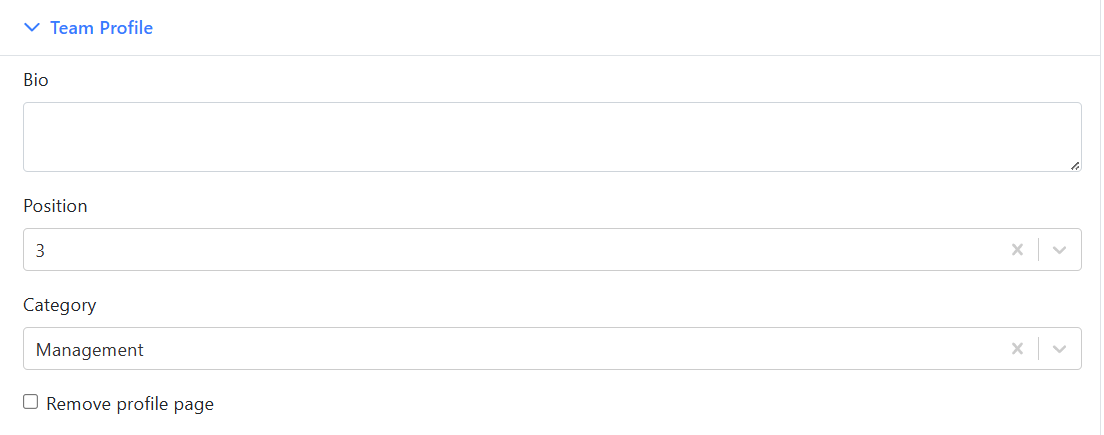
- Add a Bio if you’d like extra details to appear on their profile
- Set their Position number to control the order they appear on the page in their department, e.g. your CEO would most likely be position '1'