
Two Way Email Integration - LMS
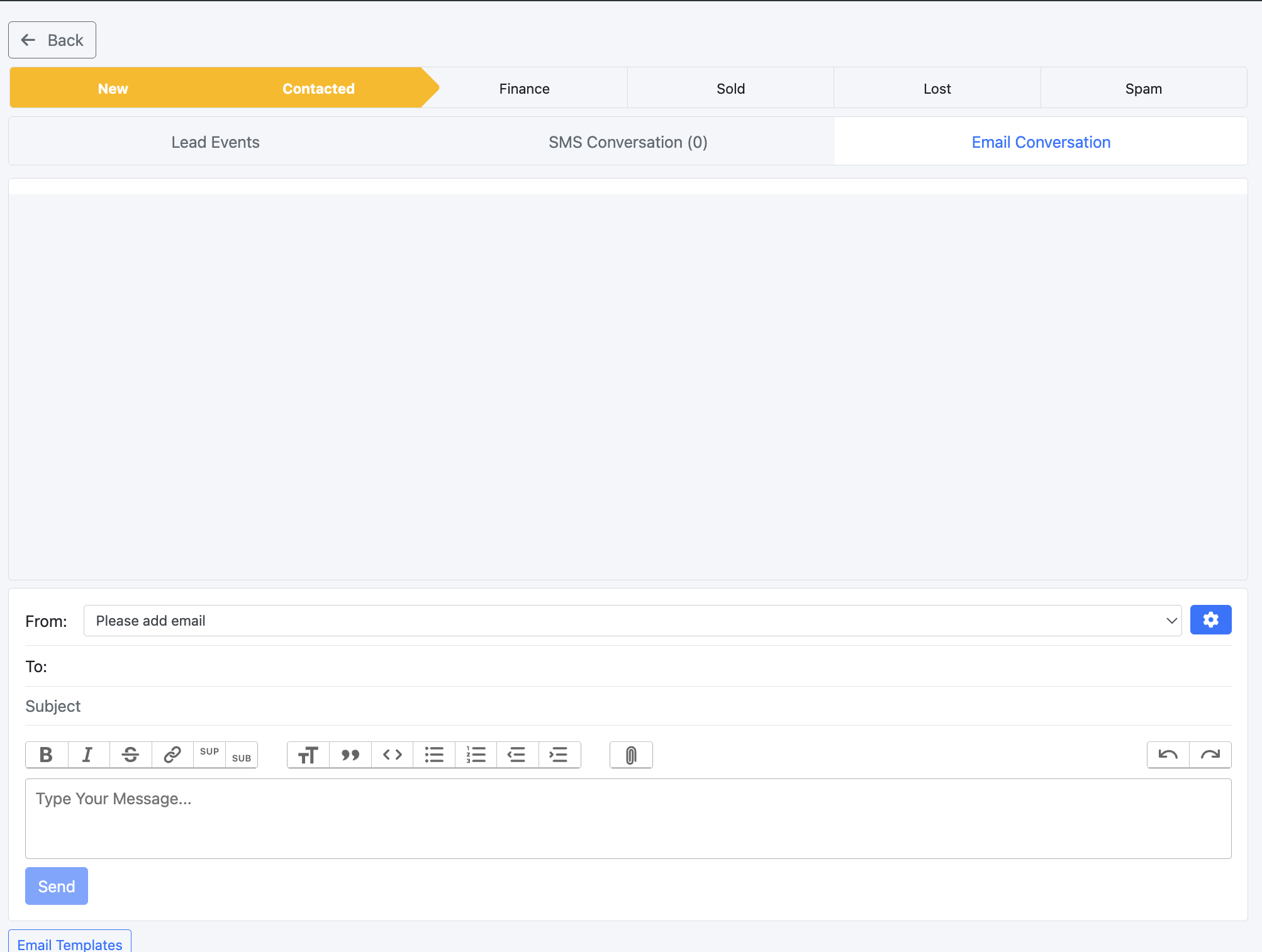
1. Sending Emails Through DealerStudio
To send emails through your dealership domain, a one-time setup is required on your domain settings.
Step 1. Domain Configuration
Get in touch with our support team. We will configure the required DNS settings, which will then need to be added on your domain’s side.
These settings include:
- A TXT record
- An SPF record
- A DKIM record
Example DNS Records:
- TXT record
- Host:
mailjet._123abcd Value:
123abcd456ef7890examplevalueSPF record
Value:
v=spf1 include:spf.mailjet.com ?allDKIM record
- Host:
mailjet._domainkey.example.com.(note the final dot) - Value (all on one line):
- Host:
k=rsa; p=MIGfMA0GCSqGSIb3DQEBAQUAA4GNADCBiQKBgQCexamplefakekey1234567890ABCDEFGHijklmnop
Once your IT team has added these records, let us know and we will run a verification step inside Mailjet.
Step 2. Add Your Email in DealerStudio
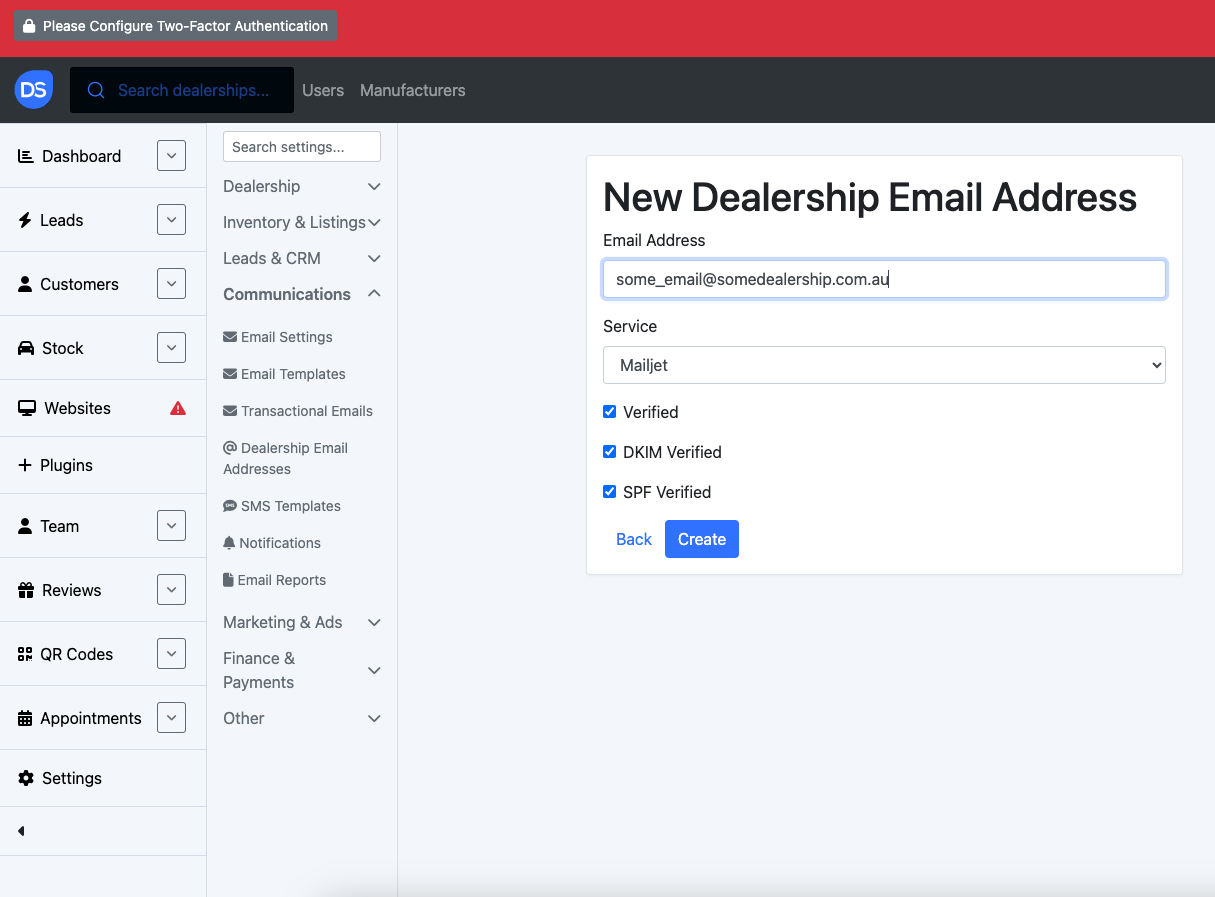
After verification:
- Log in to your DealerStudio account as a Manager.
- Navigate to your dealership’s email settings page, e.g.:
https://yourdealership.dealerstudio.com/dealership_email_addresses
- Click New to add an email address.
- Enter your dealership email, keep Service = Mailjet, and tick all three checkboxes.
- Click Create.
Step 3. Test Email Sending
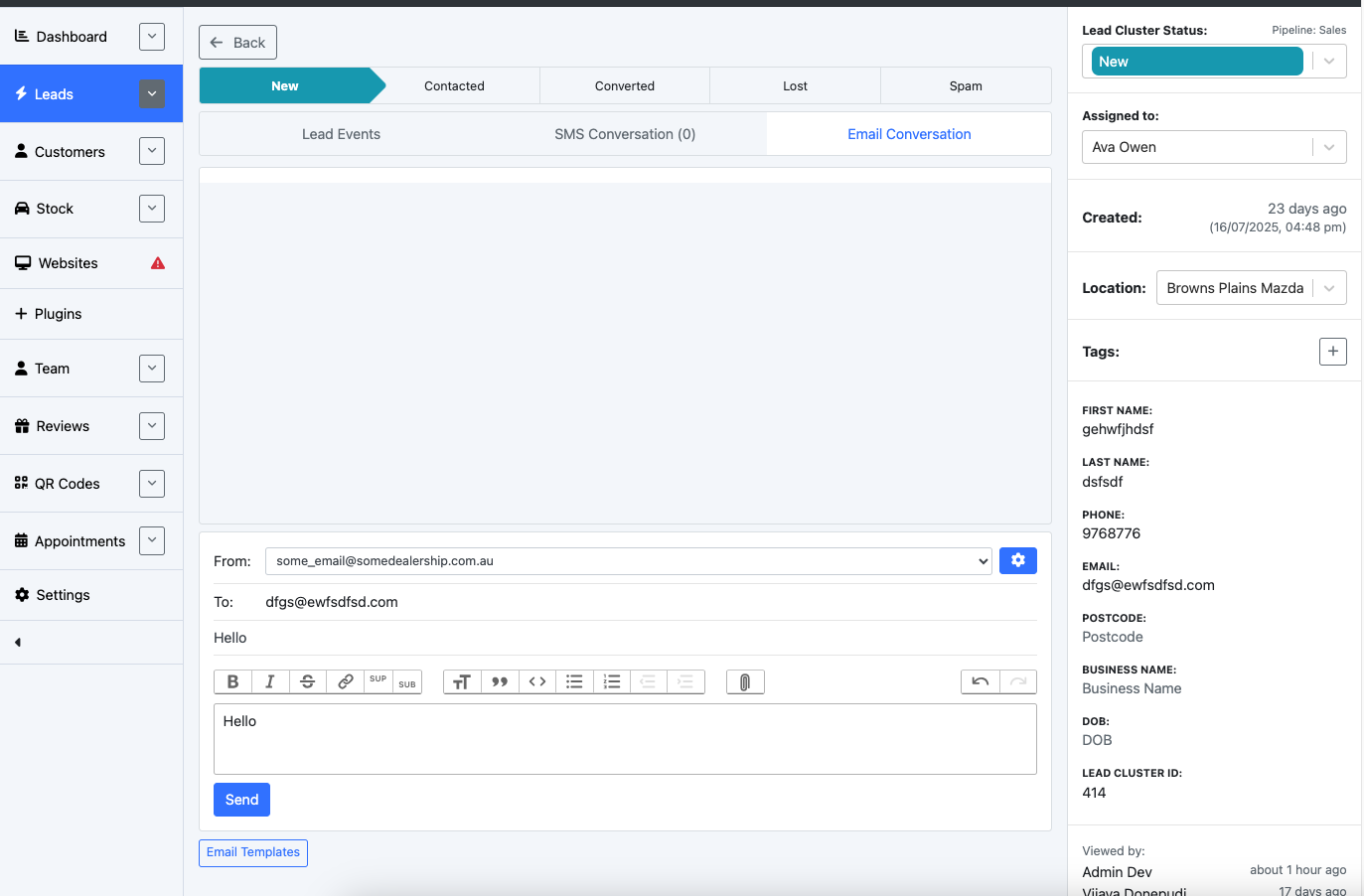
To confirm sending works:
- Go to your Lead Clusters page, e.g.:
https://yourdealership.dealerstudio.com/dealerships/motorama/lead_clusters
- Select a lead cluster (e.g., “New Vehicle”).
- Open the Email Conversation tab.
- Your new email address should appear in the dropdown.
- Enter a subject and message, then send a test email.
✅ If successful, you’re now ready to email leads directly from DealerStudio.
Additional Options
- Add more email addresses: Click the gear icon next to the email dropdown.
- Use email templates: Click the Email Templates button to quickly insert pre-written responses.
2. Receiving Emails in DealerStudio
If you’d like replies (or other emails) to appear in DealerStudio:
- Set up email forwarding from your dealership email to:
[email protected]
- Example:
[email protected] - Only emails that are configured on your Dealership Email Addresses page will work with forwarding.
What happens when emails are received?
- If the sender isn’t already a contact, a new contact is created automatically.
- If the contact isn’t part of a lead cluster, a new lead cluster is created.
Forwarding Setup by Email Host
The exact forwarding process depends on your provider:
- Crazy Domains
- dnsimple
- Cloudflare
- GoDaddy Professional Email
(Our support team can assist with detailed forwarding steps for your email host.)
Summary
- Sending emails: Requires DNS setup with Mailjet (TXT, SPF, DKIM) → verify → add email in DealerStudio → test.
- Receiving emails: Optional, enabled via email forwarding.
- Templates: Save time with prebuilt email templates.
- Multiple addresses: Add as many dealership emails as needed.
This setup ensures your team can manage all customer communication — directly within DealerStudio.