
Adding a Brochure
Dealer Studio allows you to easily manage and showcase various brochures and user handbooks directly on your dashboard. Whether it's model brochures, user guides, or product catalogues, this article will guide you through the process of:
- Uploading to Cloudinary
- Adding New Documents to the Dashboard
- Updating Existing Documents on the Dashboard
Uploading to Cloudinary
Step 1: Making your Cloudinary account
Uploading a PDF file through Cloudinary is totally free. So head to this link https://cloudinary.com and click the "Sign Up For Free" button.

From there you can use your Google account or email to sign up. Follow the prompts and you should have an account set up in under a minute.
Step 2: Upload your MP4 file to Cloudinary
In your Cloudinary console, head to "Assets" in the side bar.

And then to "Media Library".

From there, click on the "Upload" in the top right.

Clicking that will bring up a file selection prompt where you can drag and drop your PDF file or you can browse your files for it.

Once you've selected your file, it will automatically start uploading it. Allow a couple of minutes for it to complete.
Step 3: Getting the PDF link
Filter by "My Uploads" and your document will appear.
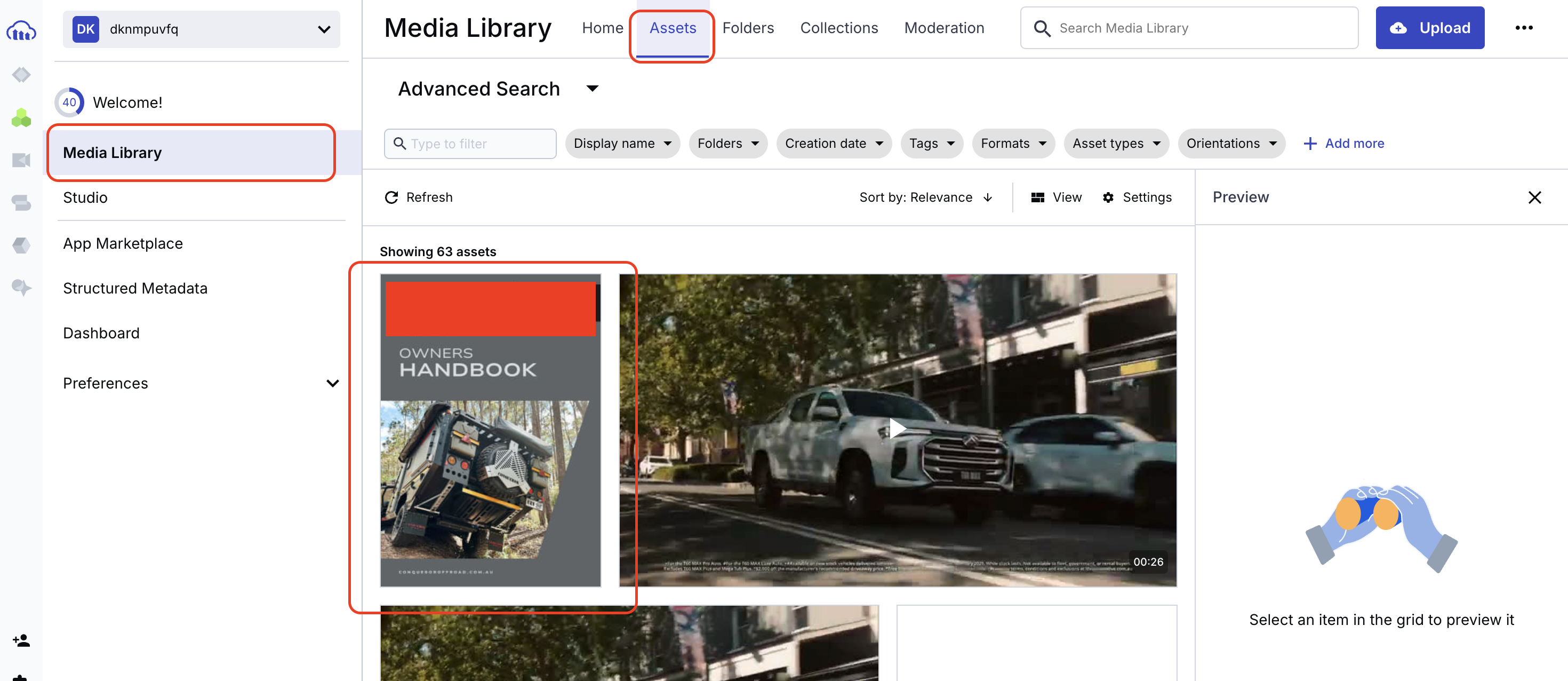
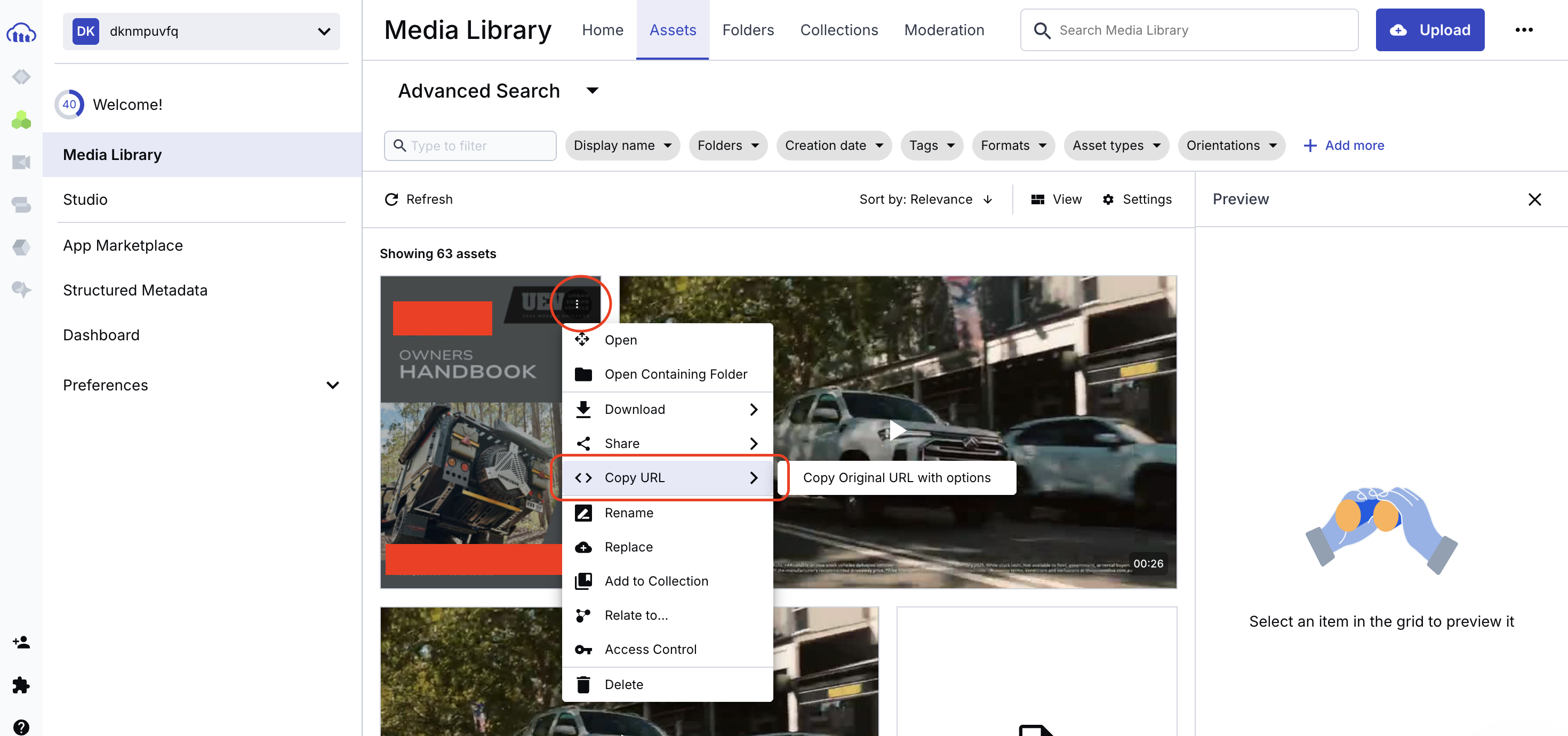
From there, access the drop down menu available on your upload, its in the format of 3 dots and will appear when you hover over the file.
Then hover over "Copy URL", and navigate to "Copy URL with options".
Clicking on "Copy URL with options" will bring up the following:
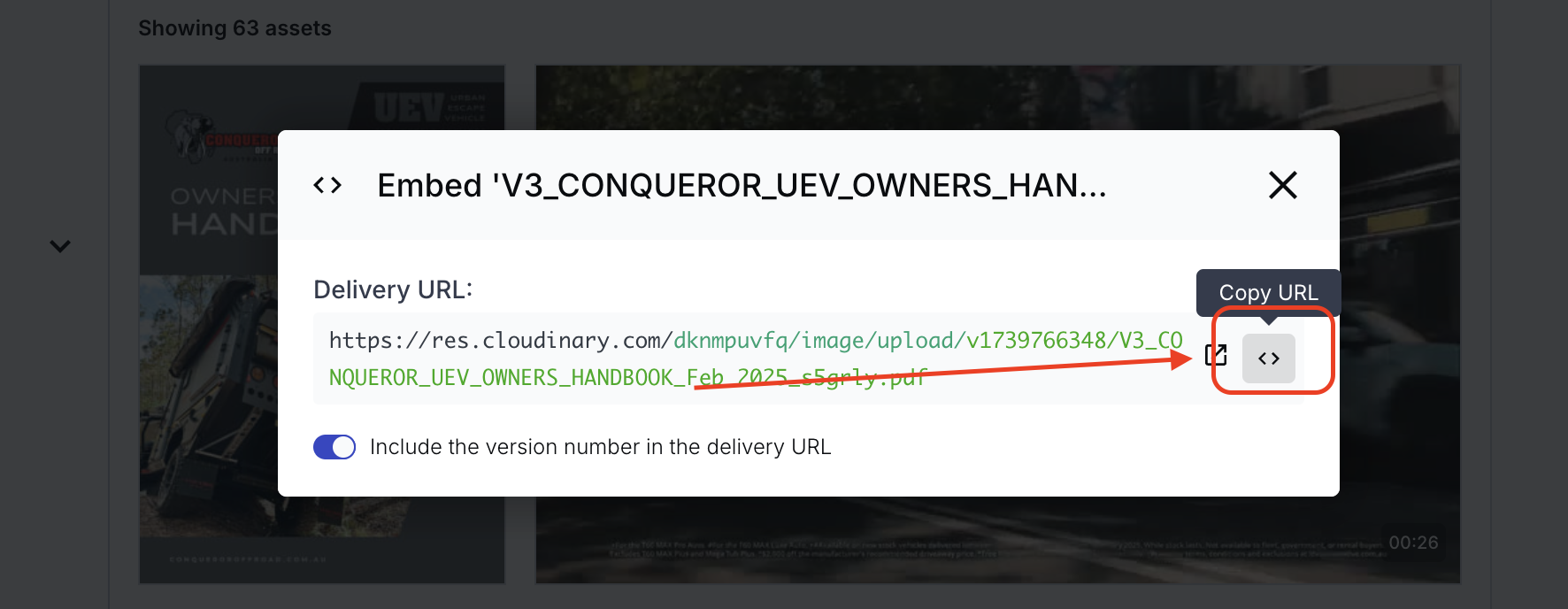
Simply copy that link, or click "<>" to copy the URL.
Adding a New Document
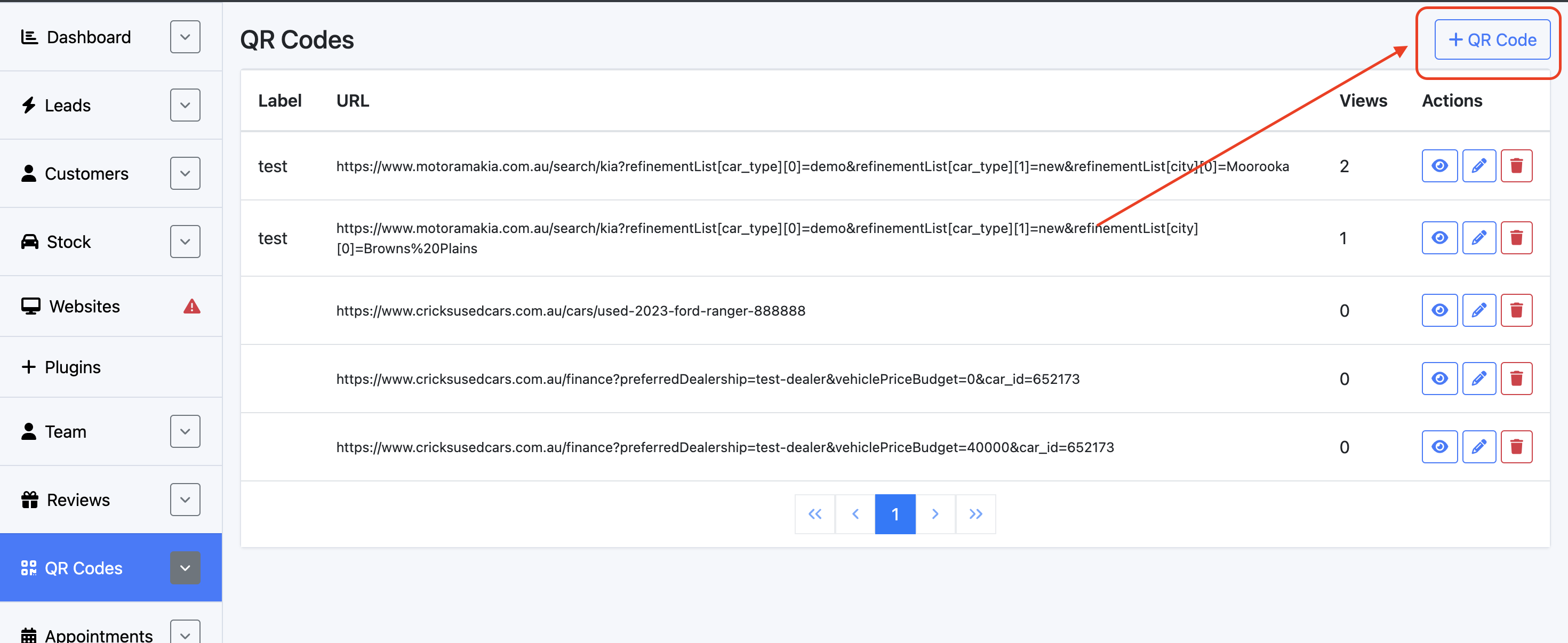
On the Dealership level of the dashboard, select QR Codes
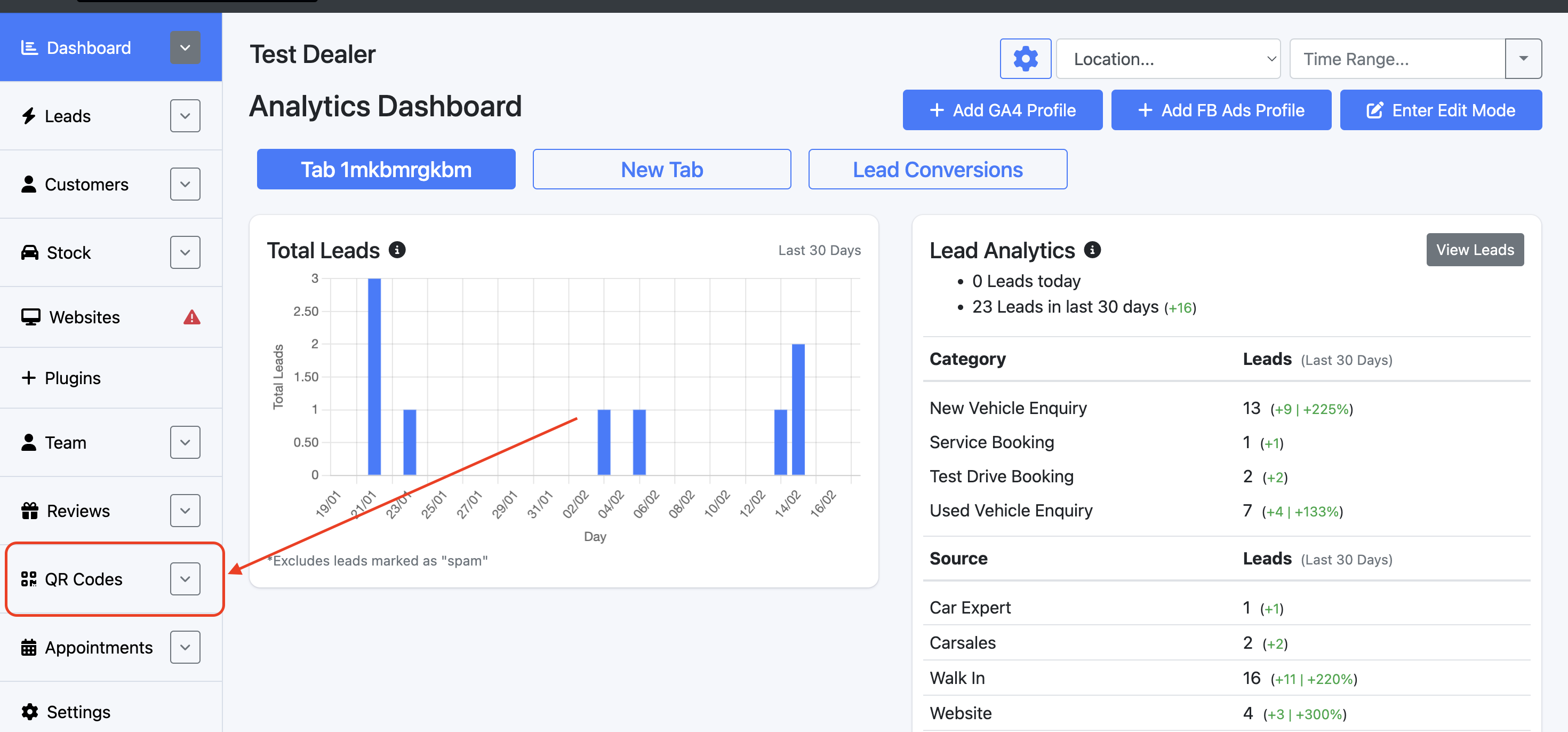
Select + QR Code
Input the information as requested on this page
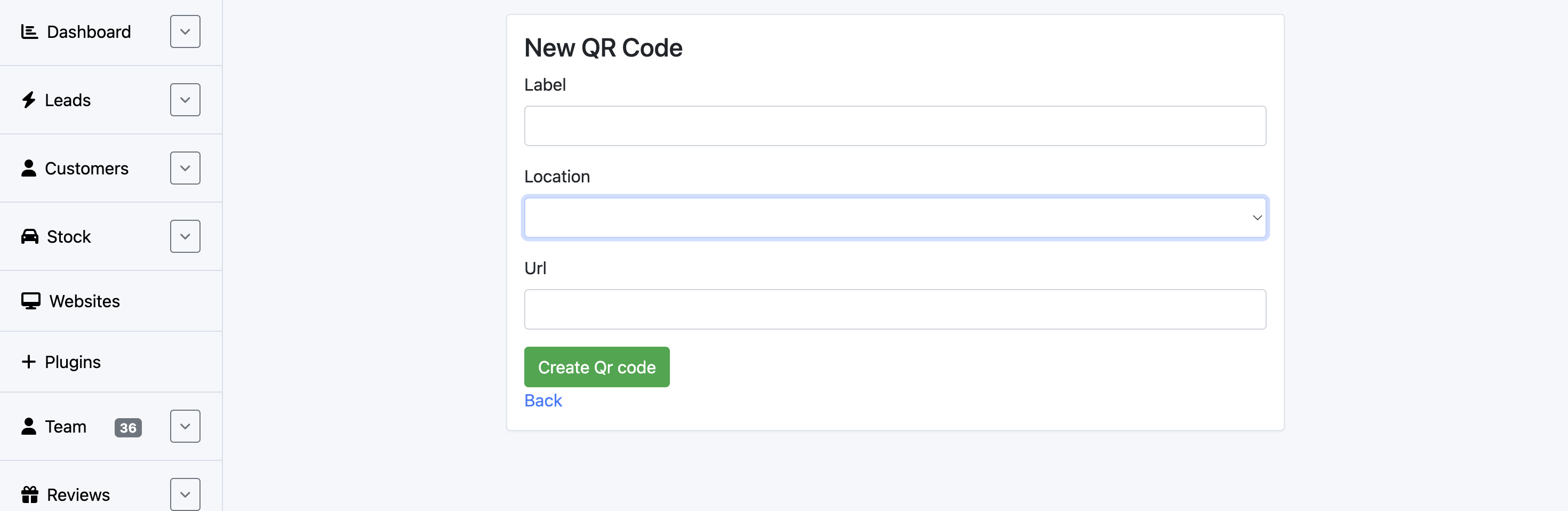
Label: Title of the document
Location: Select all locations you would like this to appear
URL: Paste in the Cloudinary URL here
Select Create QR Code to finalise your changes.
Updating Existing Documents on the Dashboard
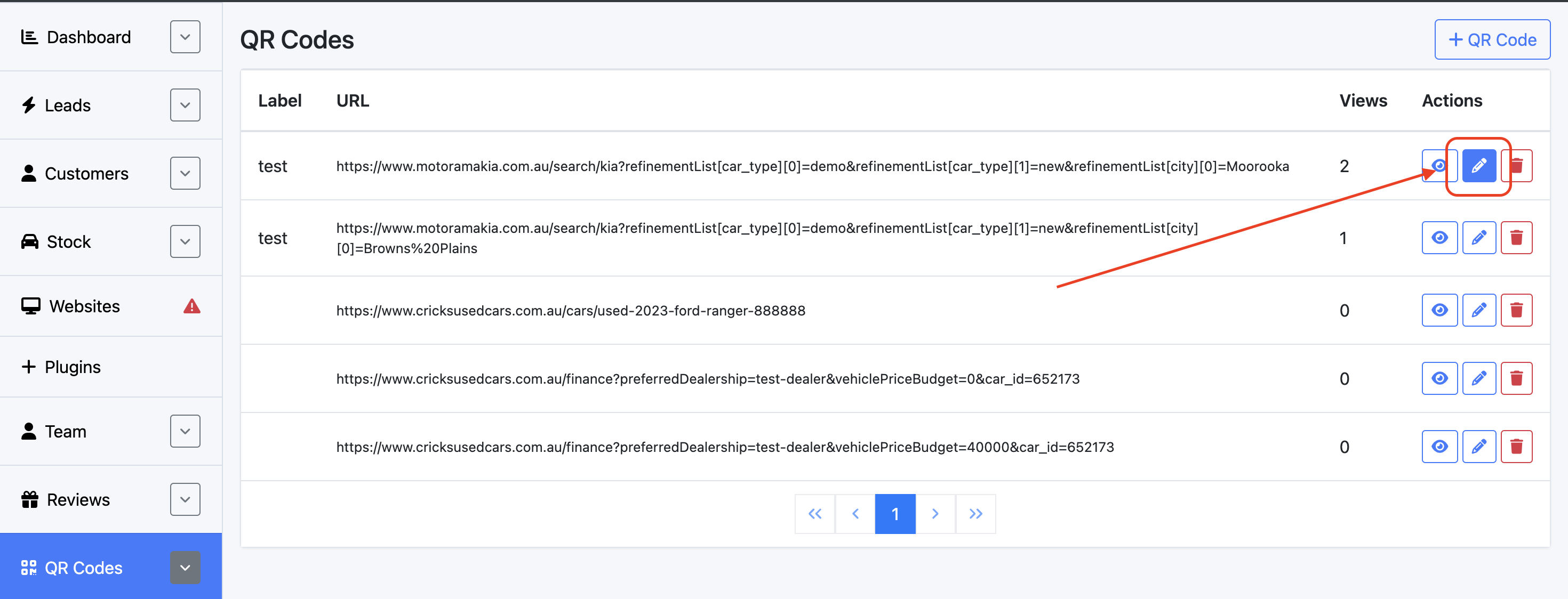
On the Dealership level of the dashboard, select QR Codes
Find the existing document you are replacing and select the pen icon under Actions
Replace the URL with the new Cloudinary URL link
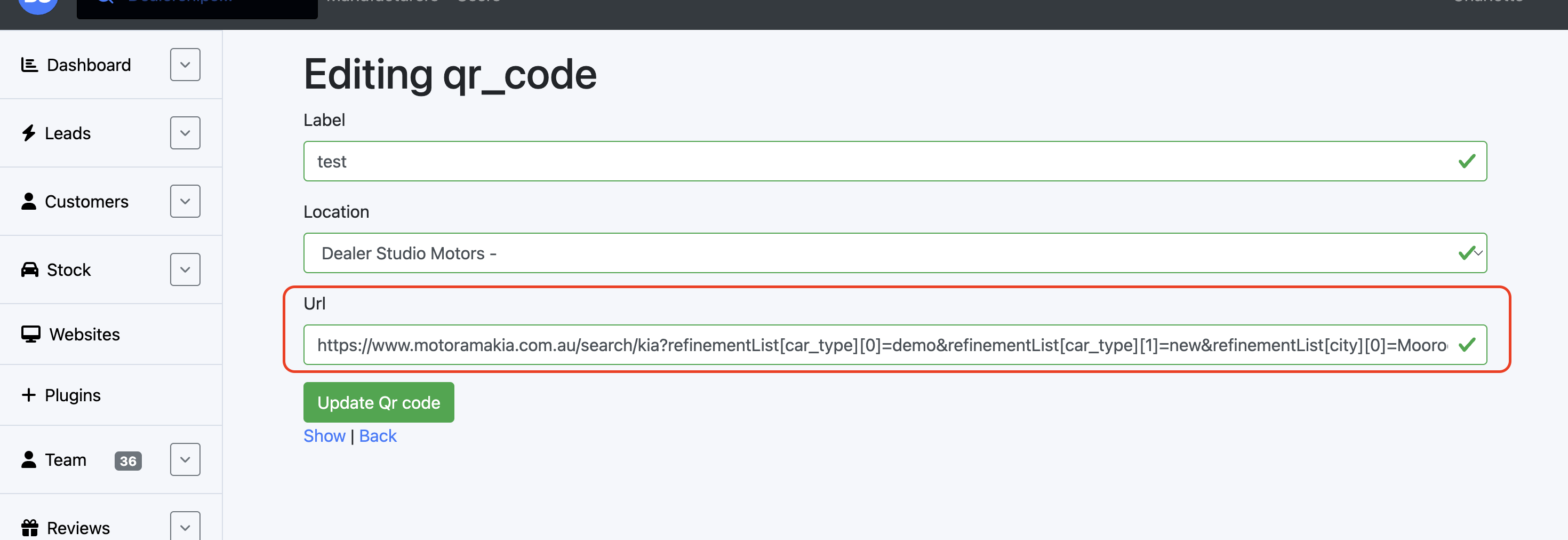
Select Update QR code to finalise your changes.